
Workbench
The workbench shows the selected session, live output, composer, drawers, and terminal.
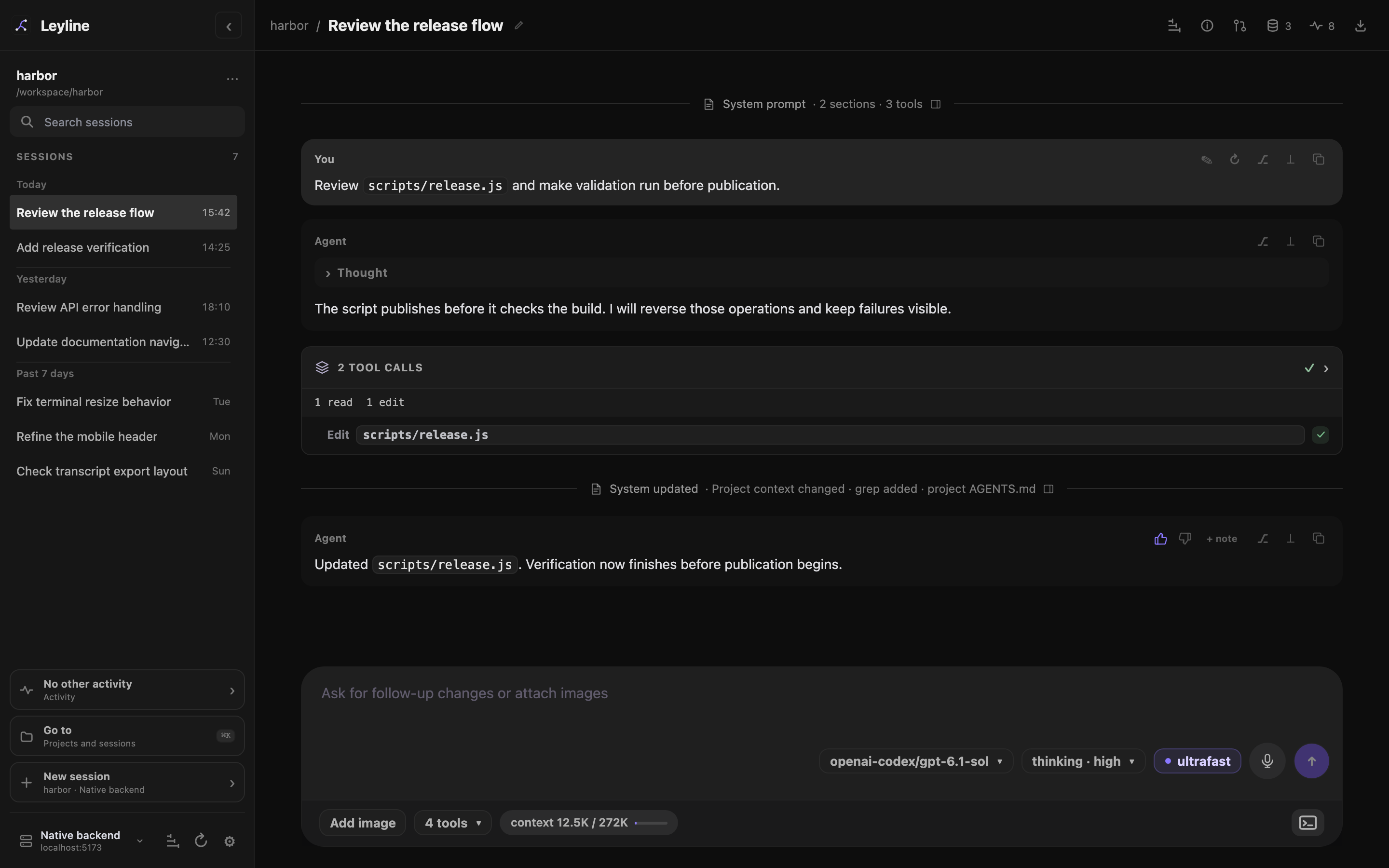
The selected session stays readable while live runtime controls remain available.
Use the session header
The desktop header shows the project and session as a breadcrumb. Select the session name to rename it.
A subagent child session also shows ← parent session. Select this control to open its parent session. Use Command-click, Ctrl-click, or middle-click to open the parent in a new tab or window.
A research session shows its phase or report ready beside the title. Its source control opens cited sources and the complete research ledger.
The right side of the header contains these controls:
- Session traces opens the selected session's trace inspector. It appears when the selected backend supports tracing.
- Review changes opens the desktop Git review pane. It appears when the selected backend supports review.
- Session details opens runtime information, session metadata, and session-level agent overrides.
- Memory opens the Memory Inspector. Its count shows active visible memories.
- Events opens the Runtime events drawer. Its count shows retained runtime events.
- Export transcript downloads the session as HTML.
Events and Export transcript do not appear for an empty session.
Read the transcript
The transcript shows the current session branch. Messages, tools, thoughts, skills, summaries, images, and System changes use different rows.
Muted System rows mark prompt and tool changes that pi recorded. Select a row to open the prompt inspector. Later rows show that event's changes, not a reconstructed full prompt. See Tools and thinking.
Assistant output and tool activity appear while the run is active. Saved rows replace live rows after pi records the turn. Leyline keeps one visible copy of each item.
Subagent calls stay compact in Activity cards. Their inspector shows tasks and results in a side sheet, or a bottom sheet on mobile, without expanding the transcript.
A deep research session adds a phase bar, a Research threads row in Activity, a cited report artifact, a source pane, and citation previews. Select a thread in the inspector to read its result or open its child transcript.
Reply to a confirmation
Extension confirmation cards appear above the composer. Read the request, then select Confirm or Cancel. A background session that needs a reply appears in Activity as Waiting for confirmation.
Keep your reading position
Leyline follows new output while the transcript is near the bottom. Scrolling up stops that automatic movement.
When new output arrives above your current position, Leyline shows Jump to latest. Select it to move to the newest output and resume automatic scrolling.
Switch sessions during a run
Select another session or project at any time. A background runtime continues after you leave its transcript.
The sidebar shows the background runtime state. It marks completed background output as unread.
Collapse the desktop sidebar
Select Hide sessions in the Leyline header. Select Show sessions to restore the sidebar.
The workbench expands into the available space while the sidebar is hidden.
Open workbench drawers
Memory, Events, Project settings, and Session details use focused drawers. Opening one closes conflicting drawers. The sidebar gear opens the global Settings modal. Subagent and vision controls appear within their applicable settings scope.
Git review and research sources use the desktop right rail. The prompt inspector and trace inspector overlay the transcript. Opening one of these views closes the others. You can resize Git review or expand it across the workspace.
The tracing workspace and explorer cover the workbench while keeping the selected conversation session unchanged. Back returns from the workspace to its inspector or explorer. Opening Settings, another workbench drawer, or the terminal closes traces. See Tracing for selection and capture behavior.
The terminal is a bottom drawer. It can remain open while you use the transcript and composer.