
Sessions
A session contains one pi conversation tree. Leyline shows the active branch as a transcript.
Select a session
- Find the session in the current project list.
- Select the session name.
Use Go to when the session belongs to a different project.
You can also focus a session row and press Enter or Space. Press Arrow Up or Arrow Down to focus another row.
A selected session uses the route /sessions/<encoded-id>. The start screen uses /.
Command-click a session target to open it in a new tab or window. Use Ctrl-click on other platforms or middle-click with a mouse. This behavior also applies to Open and Selected controls in Project settings → Sessions.
Browse the session list
The sidebar shows all regular sessions in the current project. It orders them from most recent modification to oldest.
The Sessions heading shows the session count. The list scrolls when it is longer than the available space.
Enter a session name or ID in Search sessions to filter the current project.
A flask after the title identifies a deep research session. The marker remains visible after the run finishes.
Pin a session
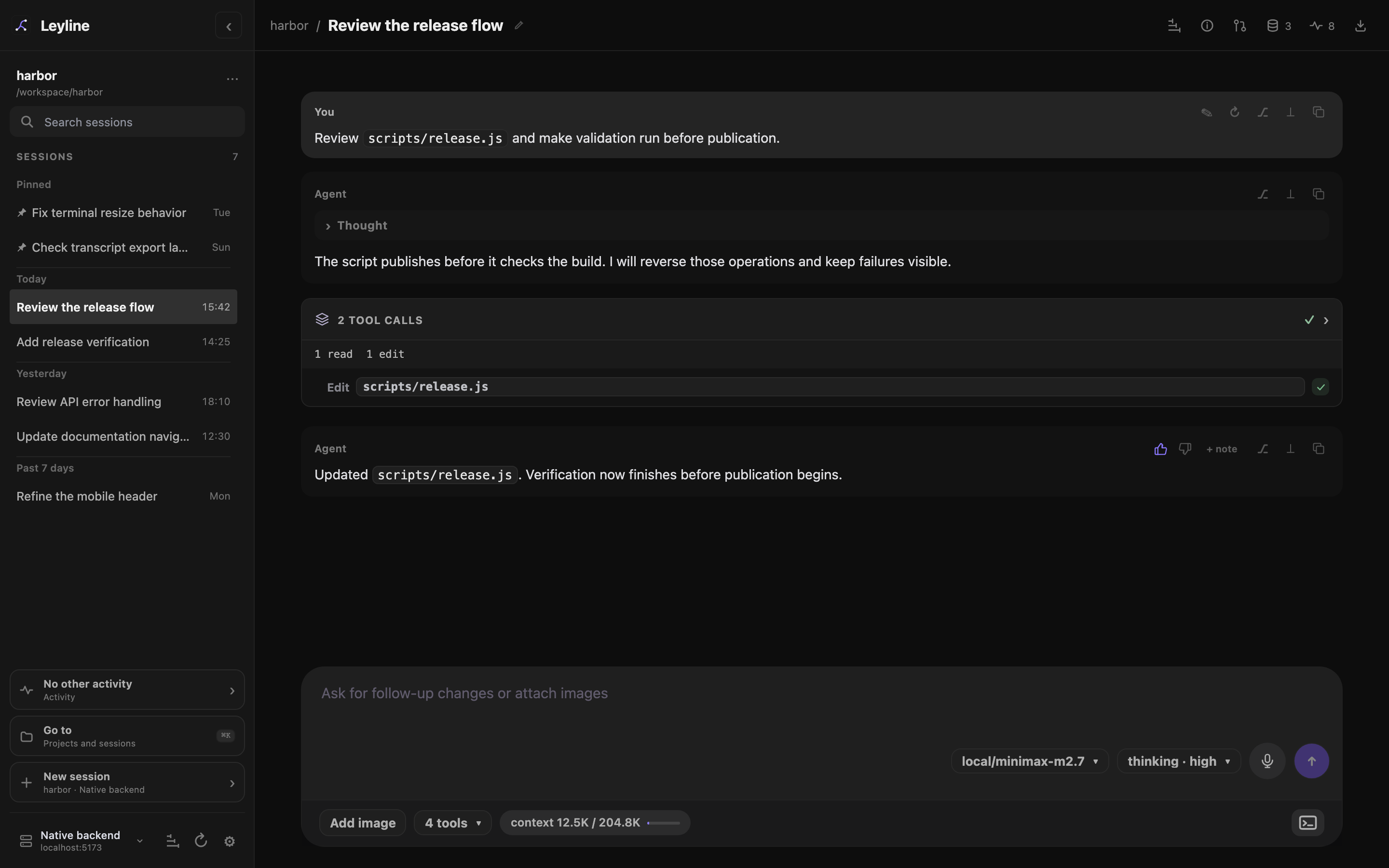
Pinned sessions stay at the top of the current project list.
- Point to the session row, or move keyboard focus to the row.
- Select Pin session.
Leyline moves the session to the Pinned group at the top of the current project list. Pinned sessions remain in modification-time order. Select Unpin session to return a session to its time group.
Leyline saves pins by backend connection in this Leyline installation. Pinning does not change the session file. A fork begins unpinned.
During sidebar search, Leyline uses search order and does not show the Pinned group. The pin marker remains beside the session title. Go to does not use pin state.
Read runtime status
A session row can show these states:
- running: the agent is producing a response.
- compacting: pi is compacting the session context.
- unread: a background run finished or reported an error.
- confirm: the session waits for a reply to an extension confirmation.
- N queued: tasks or accepted inputs are waiting.
- N held: the queue is held until you select Resume.
- error: the background runtime reported an error.
- plan, gather, synthesize, or report: a research run is in that phase.
- gather N/N: that many research threads have finished.
- ready: the selected research session has a completed report.
Select Activity to supervise other live sessions, including sessions in the current project. It shows current work and provides Open and session-scoped Stop actions.
Background sessions continue when you open another session. Activity warns when multiple sessions share one CWD and have active work or queues that are not held.
Pending Up next tasks stay with their session when you switch sessions or refresh the browser. Reload runtime keeps those tasks held until you select Resume. A backend restart clears pending tasks. See Composer for queue controls.
Create a session in a project
Select New session at the bottom of the sidebar. You can also select New session in Project settings → Sessions.
Leyline creates an empty normal session in the current project CWD. Use the centered composer to send its first prompt.
Command-click, Ctrl-click, or middle-click New session to create one empty session in a new tab or window. The current window does not change.
To create a research session, return to the start screen and select research before you send the prompt.
Rename a session from the sidebar
- Point to the session row.
- Select Rename session.
- Enter the new name.
- Press Enter.
You can also double-click the session name. Press Escape to cancel the rename.
To rename the selected session, select its name in the workbench header.
Inspect recorded runs
Select Session traces in the workbench header. Use Session run to select a captured run, then inspect its observations. Capture starts on for new runs. Older session logs are not backfilled. See Tracing.
Delete a session
Delete moves the session JSONL file to Leyline trash. The session then disappears from Leyline.
- Point to the session row.
- Select Delete session.
- Review the Delete session? dialog.
- Select Delete.
You can also start deletion from Project settings → Sessions. Leyline does not provide a trash restore control in the interface.
Session deletion does not delete its Elune traces. Trace data can retain prompts and tool results after the session leaves the sidebar. See Trace privacy.
Open a subagent session
Subagent child sessions do not appear in the sidebar. Open the subagent inspector, select a task, then select Open child session. An available Child sessions link in a trace observation also opens the child transcript.
The child-session header shows ← parent session. Select it to return to the parent session. Use a modified click on either session target to open it in a new tab or window.