
Tools and thinking
The transcript separates assistant text, reasoning, System changes, tools, skills, subagents, and feedback.
Expand a thought
Saved reasoning appears in a Thought row. During a live response, the row uses Thinking.
The setting in Settings controls how each new row starts. If no setting is saved, Leyline uses Collapsed.
To change the default state:
- Open Settings.
- Find Display.
- For Thoughts, select Collapsed or Expanded.
The setting does not change a row that is already in the transcript. Select a row to expand or collapse it.
Saved assistant text appears as rendered Markdown. Raw HTML is disabled.
Expand a tool row
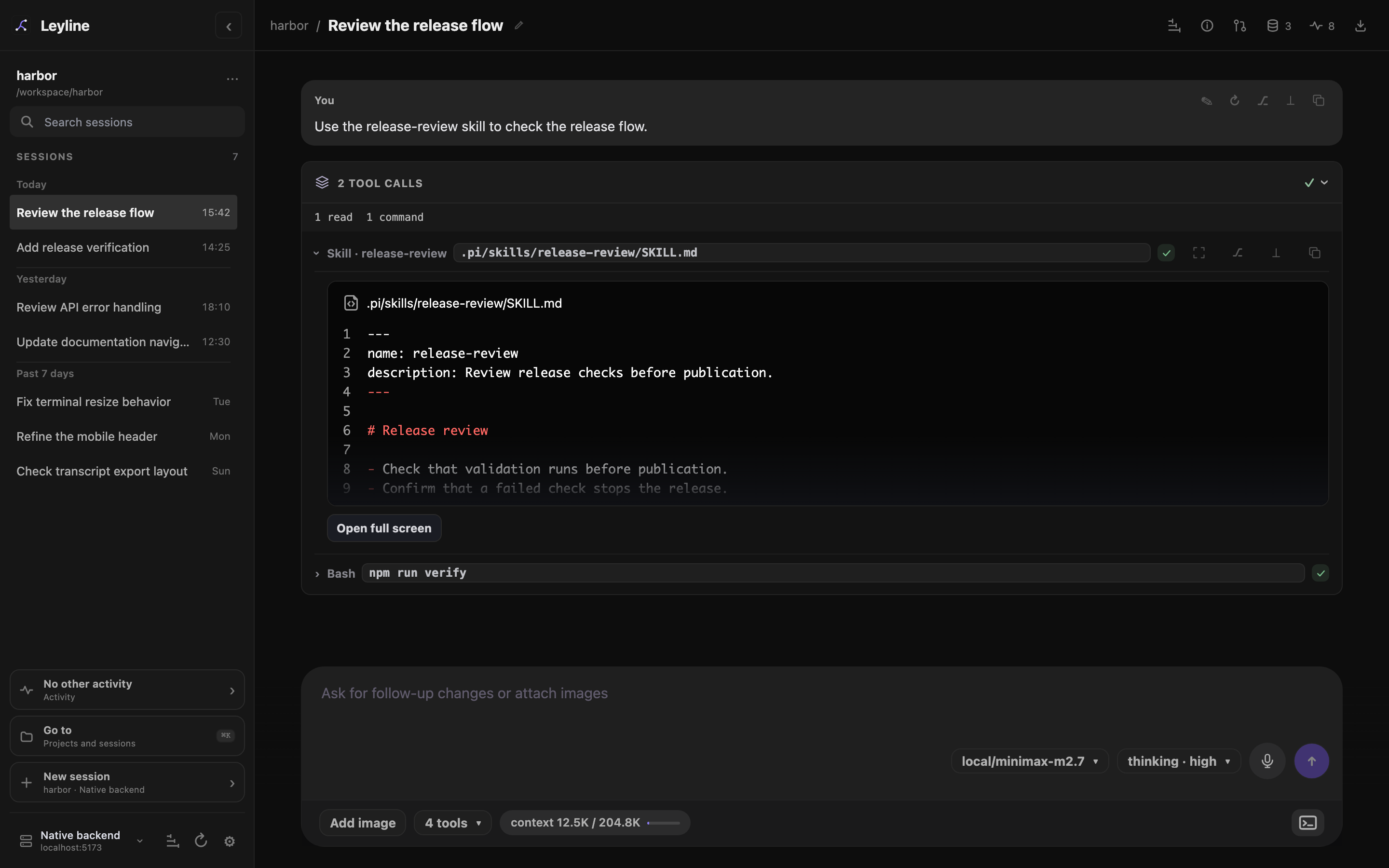
Tool calls appear in Activity cards. A collapsed card shows its outcome summary and newest call. Select the card header to show the call list, then select a tool row to show its output or preview.
Subagent calls open a separate inspector, as described below.
Each row shows a tool label, target when available, and status. Common labels include file paths for file tools and commands for shell tools.
Shell rows also show in context or not in context. This label tells you whether pi received the command output as session context.
Inspect recorded operations
Open Session traces in the header for a run's model calls, tools, timing, and usage. Select an observation, then use Input, Output, or Metadata. Open workspace shows the timeline. See Tracing for capture and content limits.
Trace data is separate from the transcript. Earlier pi logs are not backfilled, and a trace can omit or truncate content.
Inspect System changes
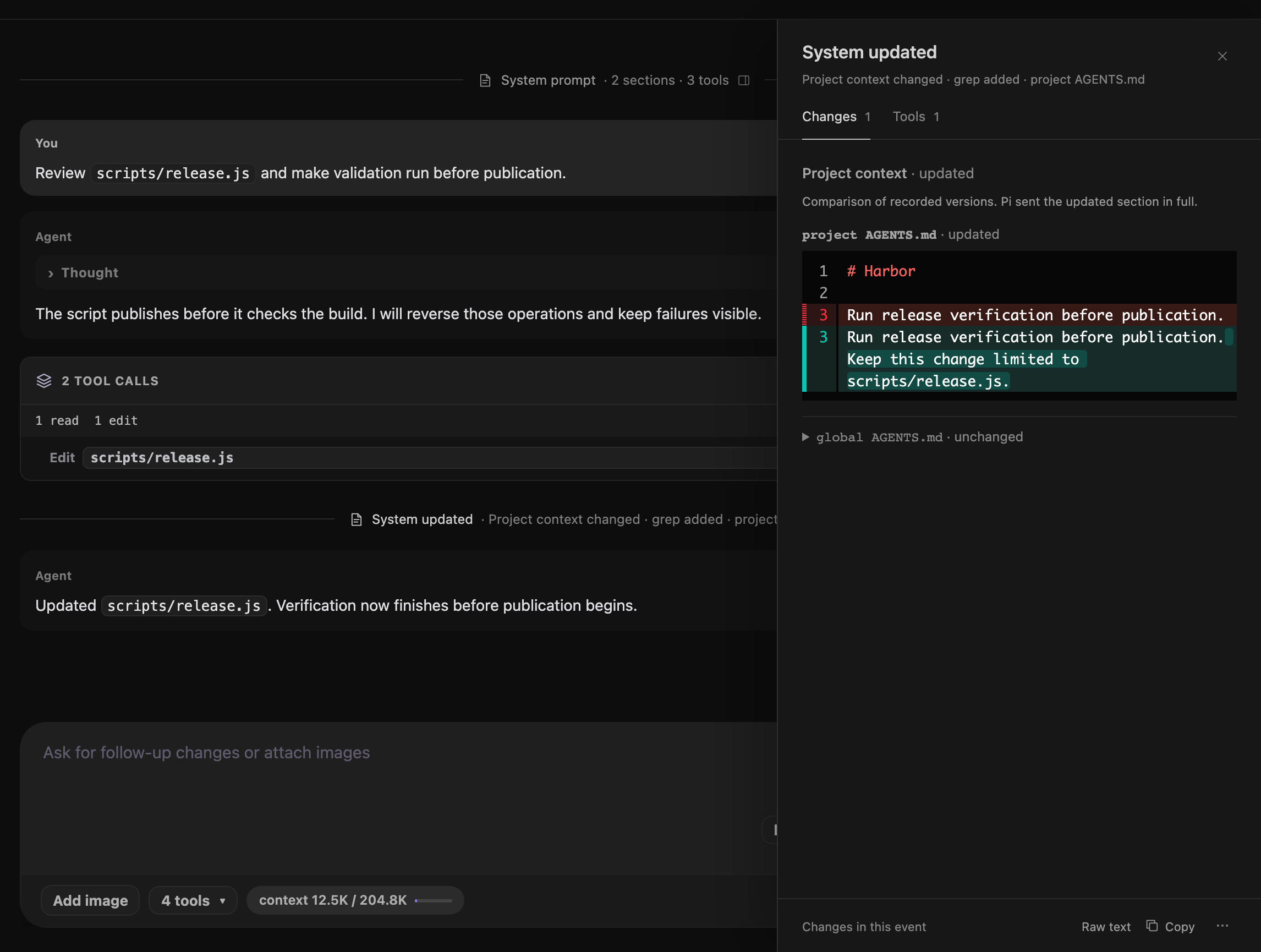
Pi records the system prompt and tool declarations as System events. Each event appears as a muted, centered divider with a document icon and a short summary. Initial declarations show System prompt. Later changes show System updated. Older sessions can have no System events.
Select a divider to open the prompt inspector on the right:
- Prompt shows the initial prompt sections as rendered Markdown.
- Changes shows updated or removed sections for a later event. It does not reconstruct the full prompt at that point.
- Tools shows initial or added tools and their descriptions, plus removed tool names. An event with only tool changes opens this tab.
For project context changes, the divider names the changed instruction files. The inspector shows added and removed lines for modified or removed files. Unchanged files stay collapsed. Initial declarations and added files show their full content.
The diff compares recorded versions from the selected branch. Pi still sends the updated section in full. If the previous version is unavailable, or file boundaries are unclear, the inspector explains why it shows full content instead.
Select Raw text to see the exact event text without Markdown formatting. Copy copies that same text from either view. Select Reading view to return to the tabs.
For a saved event, the System event actions menu offers Fork from here and Reset to here. Reset is unavailable during an active run. Both actions are unavailable during a fork, reset, or compaction.
The inspector overlays the right side below the header. The transcript stays visible and interactive beside it. On mobile, the inspector fills the width below the header and blocks interaction with the transcript.
The prompt inspector cannot stay open beside Review, Sources, or a trace view. Select Close prompt inspector to close it. Escape closes the actions menu first, then the inspector. Selection stays open when a live event becomes a saved entry. The inspector closes when you change sessions or backends, or the event leaves the selected branch.
Use MCP tools and confirmations
Leyline uses pi's native MCP integration for configured servers. MCP tools use names such as mcp__<server>__<tool>. Pi's exposure settings control how the model reaches them. Calls and results appear in the transcript like other tools.
See Manage MCP servers to configure servers in Settings.
When an extension requests confirmation, Leyline shows a card above the composer. Read the request, then select Confirm or Cancel. MCP tools use pi's tool pipeline, so permission extensions can request confirmation for them too. Not every tool call requires confirmation.
For a background session, Activity shows Waiting for confirmation under Needs attention. Open that session to reply.
Open full tool output
Select Open full screen in an expanded tool row. You can also select its fullscreen action in the row header.
The fullscreen view shows the complete available output or preview. Markdown read results open in Rendered mode. Select Source to inspect the original text. The Copy action copies the source in both modes.
Select × or the backdrop to close the fullscreen view.
Expand a skill row
A call that reads a SKILL.md file appears as Skill · name in an Activity card. Expand it to read the file preview, or select Open full screen for the full content.
A loaded skill prompt appears as a compact row with [skill], the skill name, and expand. Select it to show the skill prompt payload.
Select the row again when it shows hide.
Read a subagent card
A subagent call stays compact inside Activity. If it is the card's only tool call, select either the header or row to open its inspector directly. This includes parallel calls with several child tasks. For cards with several tool calls, expand the card first.
Select a task inside the inspector to read its prompt, status, and Markdown result. Open child session opens its transcript. The inspector uses a side sheet on desktop and a bottom sheet on mobile; it does not expand the transcript.
Stopped means cancellation. Failed means a task error. Missing outcomes show Unknown, and unavailable task results retain the original response under Call output. See Subagents for details.
Copy transcript content
Select Copy in a message or tool header. Leyline copies the message text or available tool output.
The action changes to Copied for a short time. The fullscreen tool view also has a Copy action. For subagents, use Copy tool output or Copy result inside the inspector.
Add rollout feedback
- Point to an assistant message.
- Select Mark helpful or Mark not helpful.
- Select + note to add optional details.
- Enter the note.
- Select Save.
Select the active rating again to clear it. Select note to change an existing note.
Leyline stores rollout ratings and notes in local Leyline data. They are separate from the session log.
Follow live output
Leyline shows assistant and tool rows as the runtime produces them. Saved transcript rows replace the live rows after pi records the turn.
This change preserves your reading position and prevents duplicate output.