
Mobile layout
Leyline uses a mobile layout when the viewport is 760 pixels wide or less.
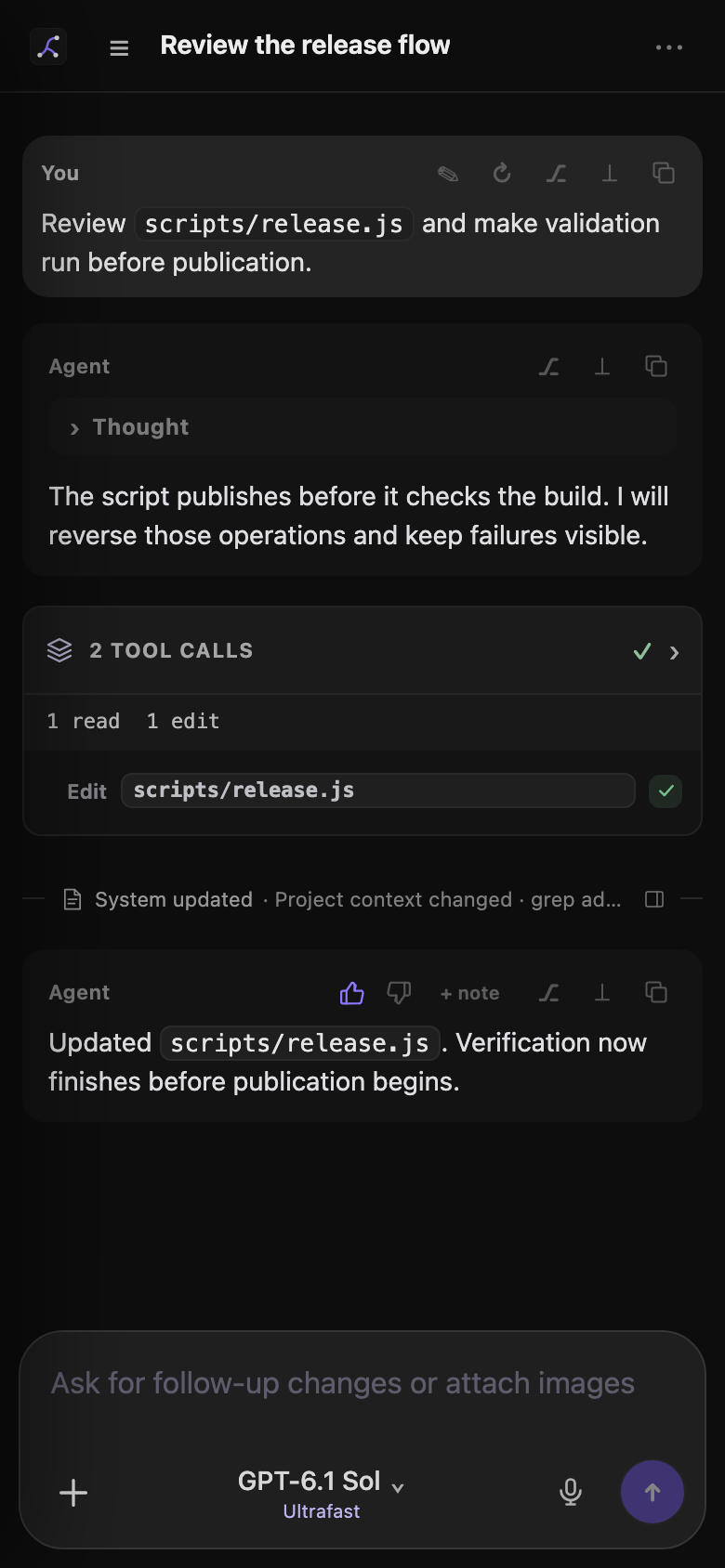
The mobile workbench keeps the main session actions in one column.
Use the mobile header
The header shows the Leyline mark, Open sessions, the session title, and available transcript controls.
The project part of the breadcrumb is hidden. The session rename glyph is also hidden, but you can select the title to rename it.
The Session traces, Session details, Memory, Events, and Export transcript icons remain available when the session and backend support them. Numeric counts are hidden.
A research session also shows its compact state and source control. The source count is hidden, but the control remains available.
Open the mobile sidebar
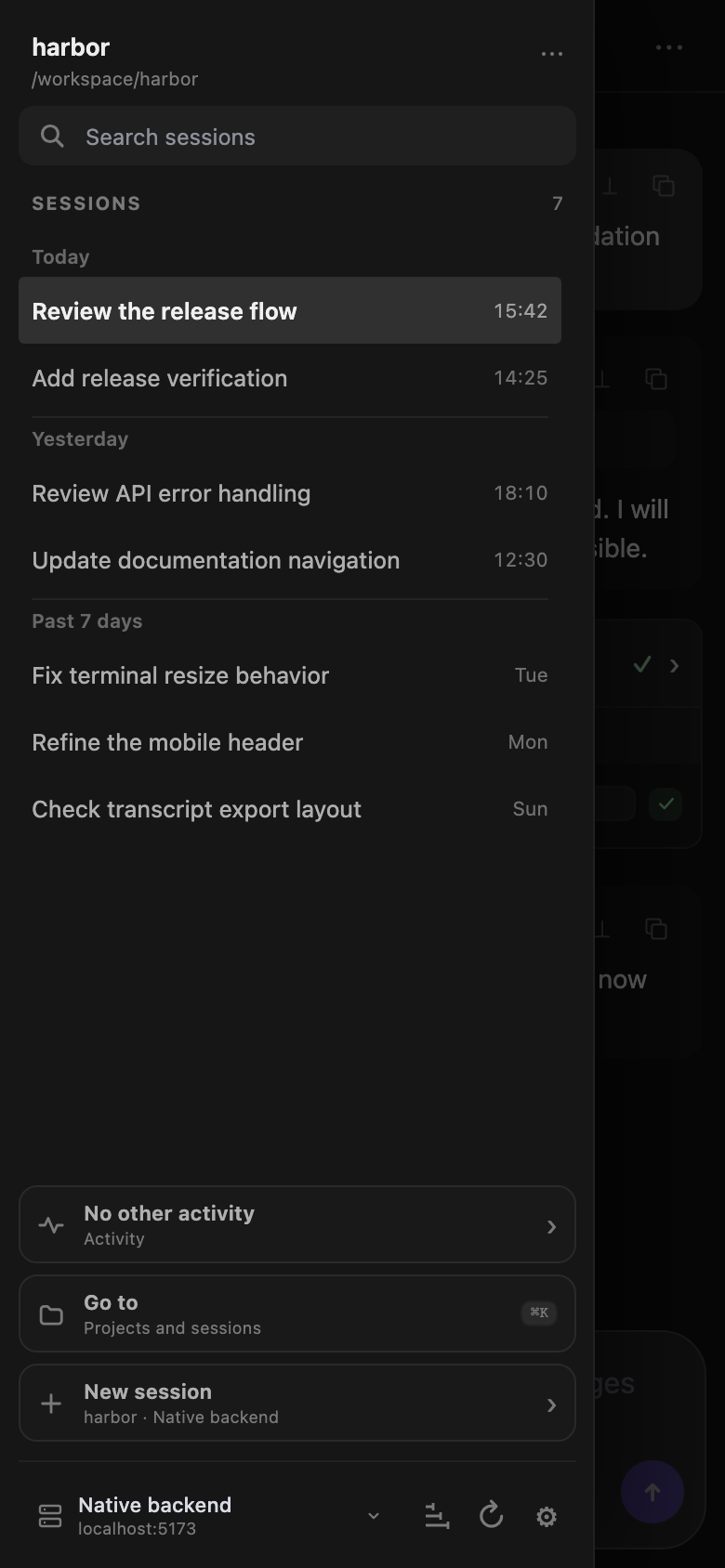
The session navigator opens above the mobile workbench.
- Select Open sessions in the header.
- Select a session in the current project.
Select Go to to open a session from another project.
The sidebar opens over the workbench. Select the shaded area or a session to close it.
The sidebar can use up to 86 percent of the viewport width, with a maximum width of 320 pixels. Activity, Go to, and Add project use the full viewport. Add project keeps its confirmation actions at the bottom.
Open Settings on mobile
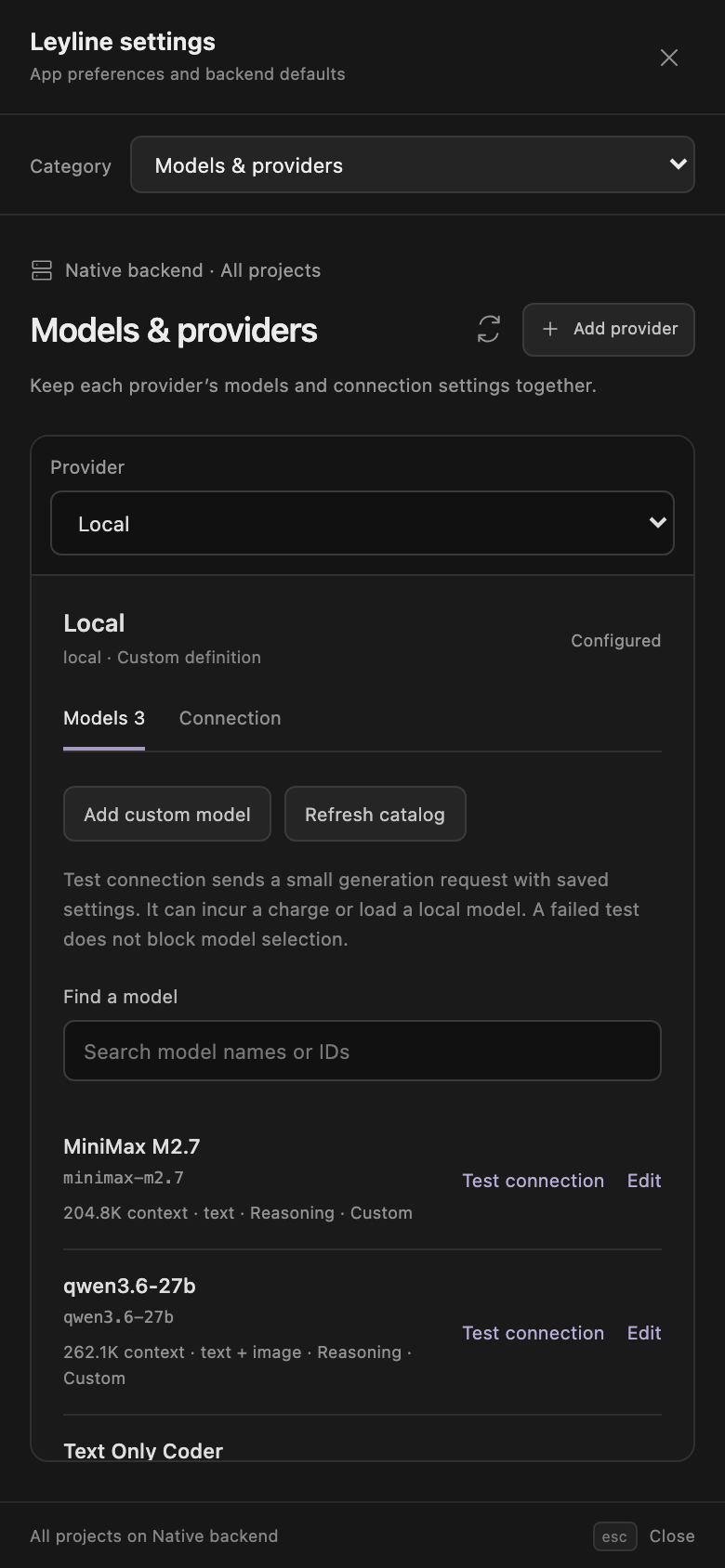
- Select Open sessions.
- Select Open settings at the bottom of the sidebar.
- Use Category to select the settings page.
Settings fills the mobile viewport. Models & providers and MCP servers use a Provider or Server selector instead of the desktop list. Detail content scrolls within the modal.
Use Close Leyline settings to return to the workspace. See Settings for scope, authentication, and reload behavior.
Share the backend with another device
Select Connections in Category, then turn on Allow network access. Copy an address that the other device can reach.
For a fixed port, enter Proxy port and select Apply. Leave the field blank for automatic selection. The port stays saved across restarts, and Apply does not change the sharing switch.
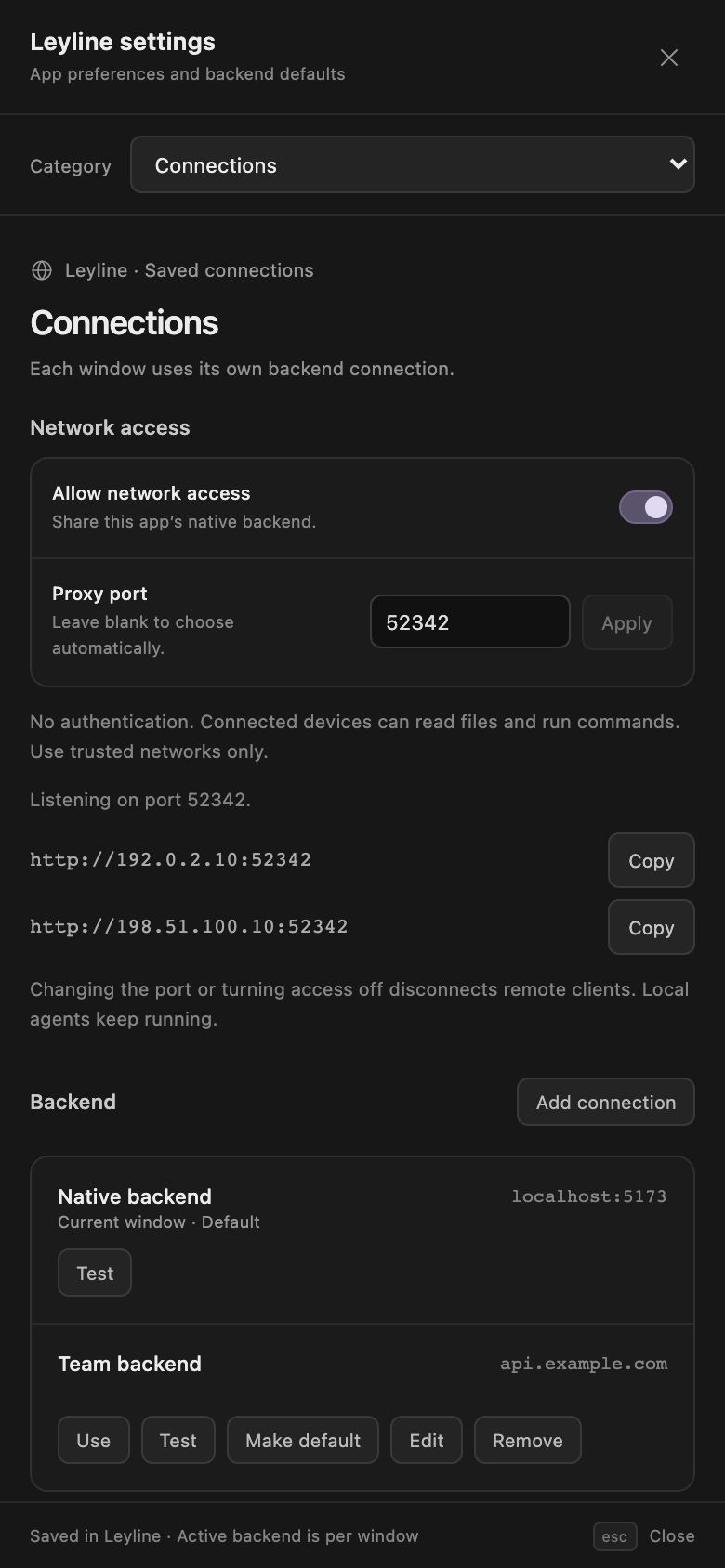
Changing the active port or turning access off disconnects remote clients and their terminals. Local clients and running agents continue. Use trusted networks only because the API has no authentication. See Network access for scope and connection details.
Edit a model or copy catalog fields
The model editor temporarily hides the category and provider selectors. Model, Thinking & compatibility, and Pricing share one draft. Save/Test stay visible below the fields.
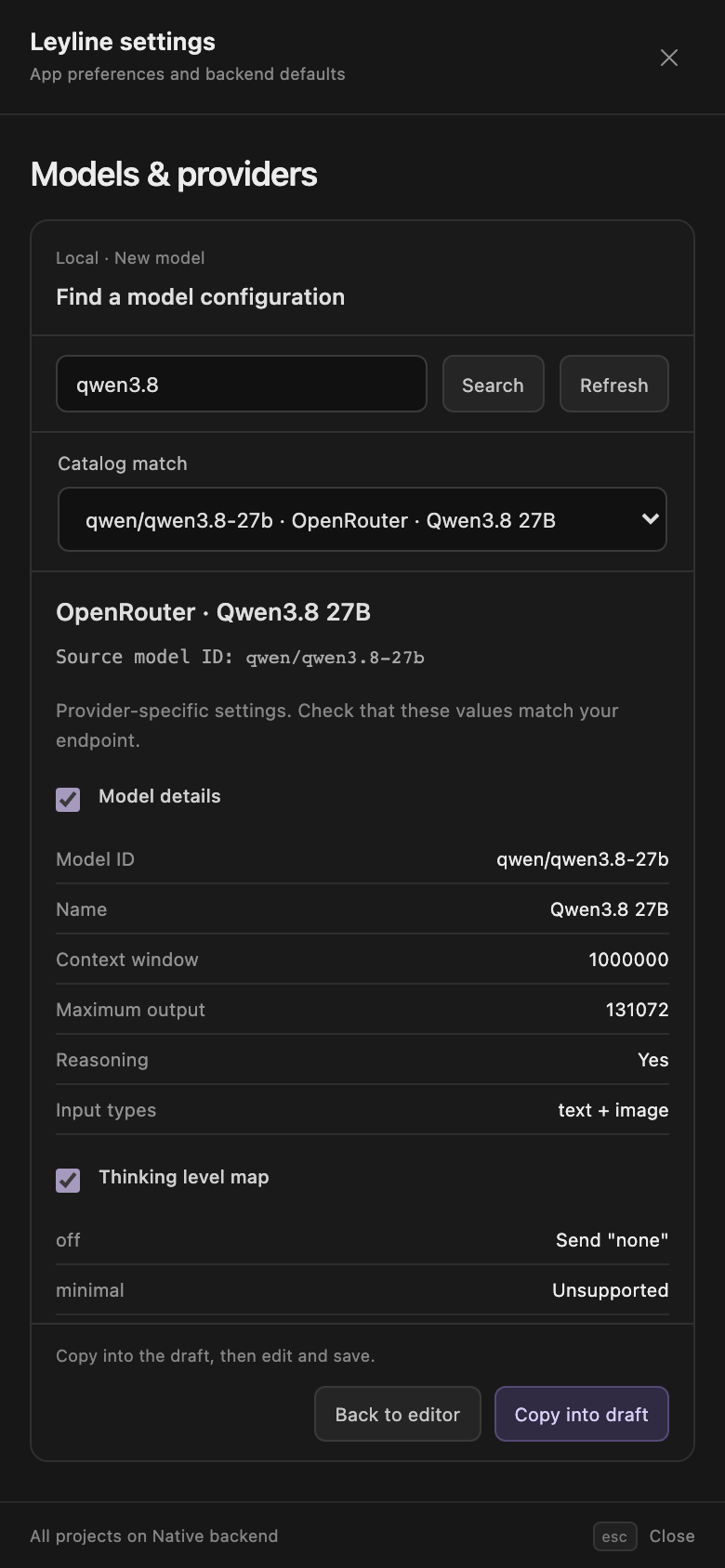
Find in catalog replaces the fields with search and review. Use Catalog match to choose a provider variant. Search and the Back/Copy controls stay visible while the review scrolls.
Copying Model details opens Model, where you can edit a new model's imported ID. Back to editor keeps your draft. See Catalog lookup for copied fields and exclusions.
Supervise activity on mobile
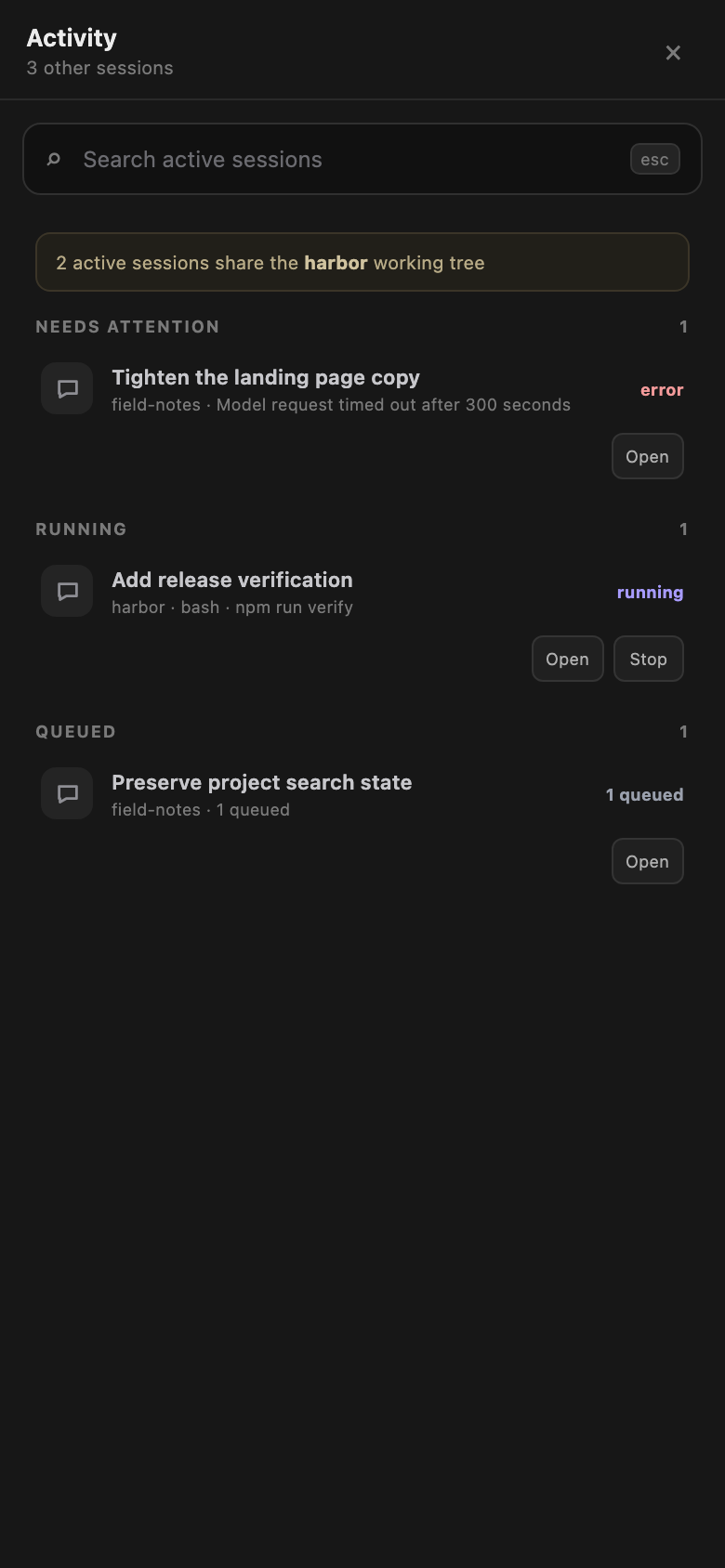
Activity keeps long session details bounded and moves row controls below the status on narrow screens.
- Select Open sessions.
- Select Activity.
- Select Open or Stop for a session.
The mobile view uses the same attention, running, queued, held, and shared-working-tree states as the desktop view. Open a session to resume its held queue or reply to a confirmation.
Use transcript actions
Message and tool actions remain in their row headers. Use them to copy, edit, retry, fork, reset, or open tool output.
Tool targets can shorten to fit the row. User messages and tool cards use the full transcript width.
Inspect subagent tasks
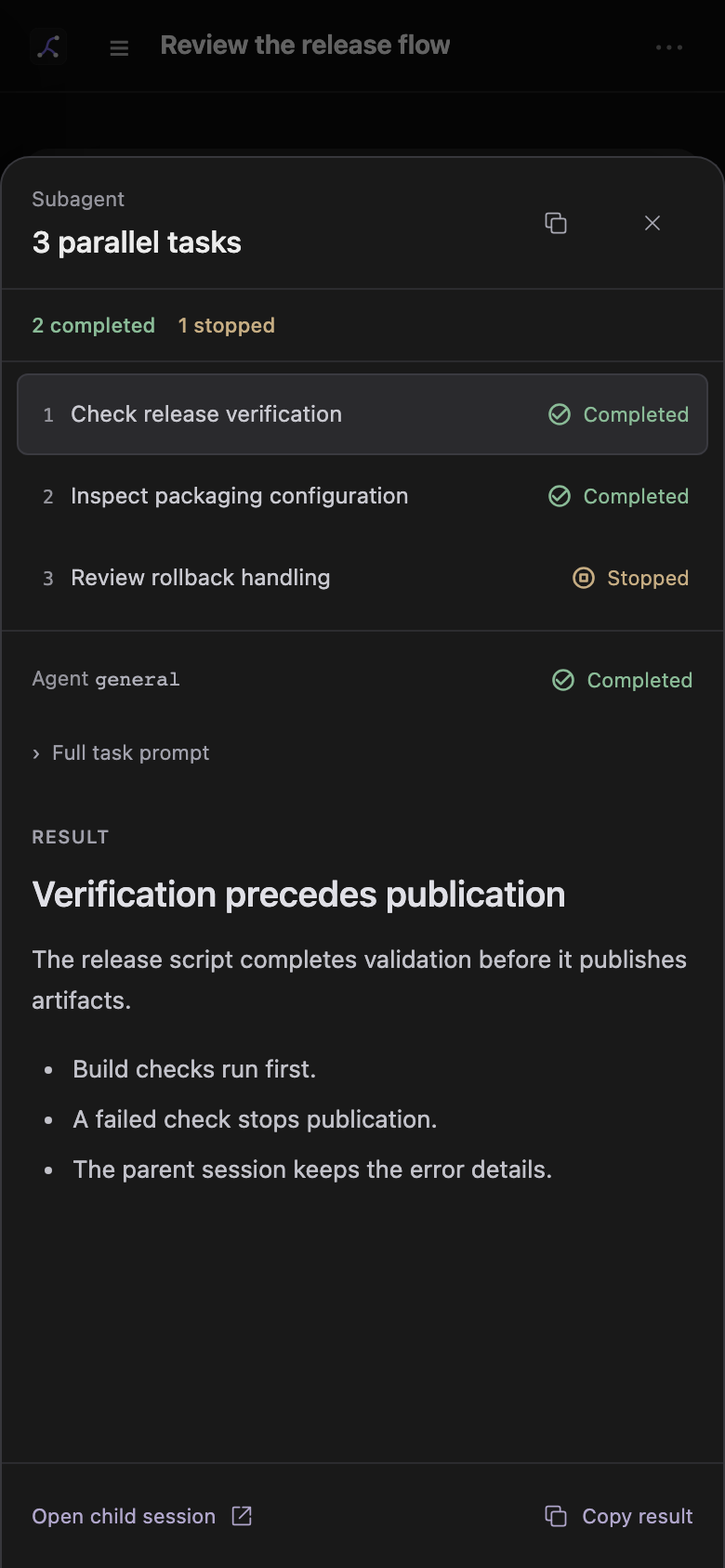
Subagent calls open a bottom sheet instead of expanding the transcript. If an Activity card contains only one subagent call, select its header or row to open the sheet directly. Parallel tasks still count as one call.
Select a task to read its result, expand Full task prompt for its instructions, or select Open child session to open its transcript. The task list and result area scroll separately. The session link and Copy result stay in the footer.
Select the close button or backdrop to return to the transcript. See Subagents for outcome labels and confirmation behavior.
Use the mobile composer
The composer stays above the bottom edge. Model, thinking, optional ultrafast, dictation, and send controls share the primary row. With ultrafast available, narrow screens move the model control to its own row.
The ultrafast chip uses the same supported models, premium pricing, and session scope as on desktop. See Runtime controls.
During an active run, the send arrow adds the draft to Up next. Select Send options beside the arrow for Queue next task or Steer current run.
Select the attached Up next tab to open the tray across the composer width. The tab moves above the list. The input and footer stay fixed while the list scrolls. Each task has one actions menu for edits, order changes, steering, and removal.
Stop holds remaining unsent tasks. The closed Held tab shows the count and Resume. Text edits keep images, and closing the tray keeps an unsaved edit. Save or cancel the edit before you select Resume. See Composer for queue details.
The context row contains runtime status, shell mode, tool count, context text, and the terminal control. Some secondary status chips are hidden to keep the row compact.
The model control uses the provider/model-id label. The thinking control uses a shortened label. The context progress bar is hidden, but its token text remains.
Open research sources
A deep research source pane opens across the full viewport. It has Cited and Research ledger views.
Select the source control in the header to open the pane. Select × to close the pane and return to the report.
Select a report citation to open its source preview as a bottom sheet.
Inspect traces on mobile
Select Session traces in the header for the current session. For all projects on the selected backend, open the sidebar and select the Trace explorer icon button.
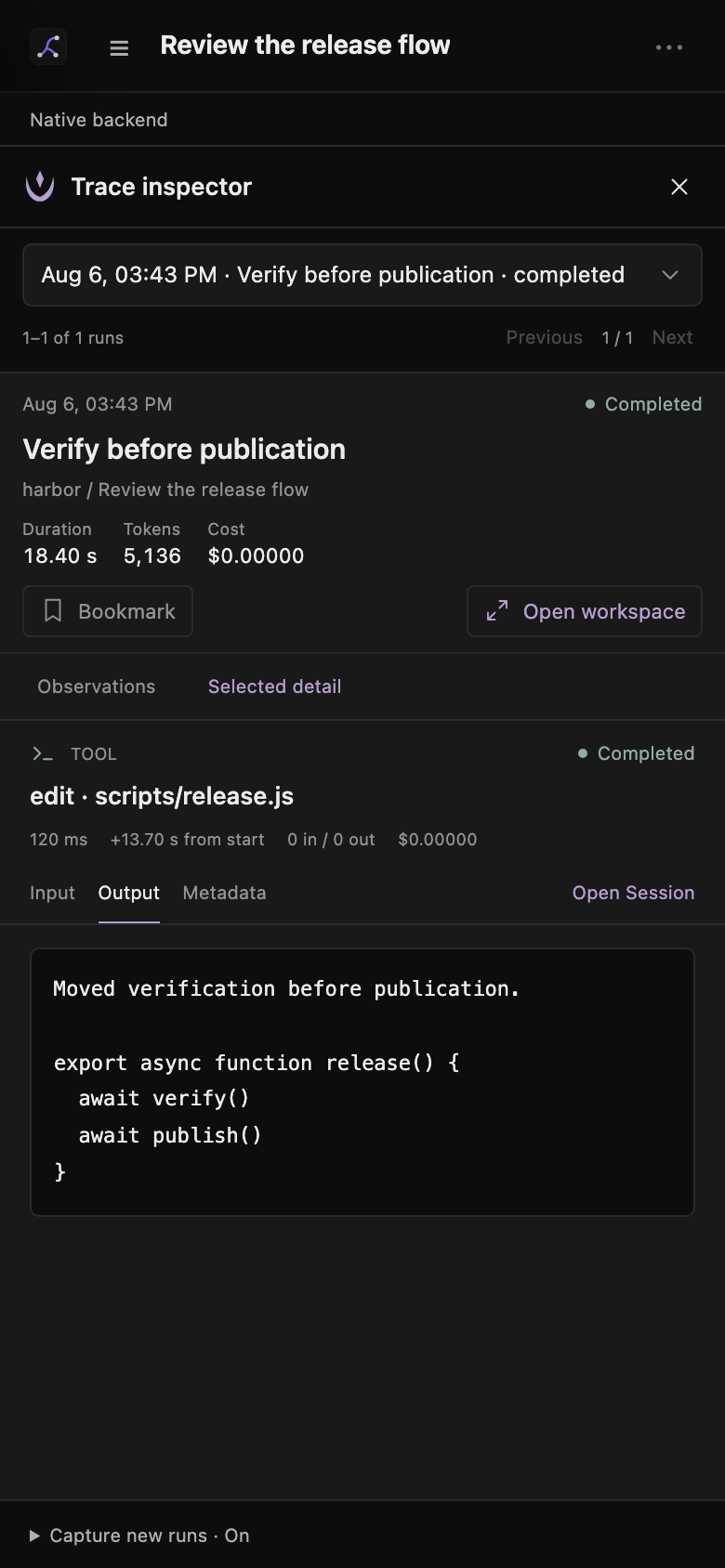
Trace views fill the width below the header.
Use Observations or Timeline and Selected detail to switch panels. The explorer uses Traces and Selected preview. Expand Capture new runs in the footer to change capture for future runs.
Back returns from the workspace to its inspector or explorer. Opening the sidebar or terminal closes traces. See Tracing for batch limits and privacy.
Use drawers and the terminal
Right-side drawers can use the full viewport width, with a maximum width of 420 pixels.
The terminal opens from the bottom. Its default height is 310 pixels.
The transcript adds space for the composer and terminal, so the newest output remains reachable.