
Composer
Use the composer to send prompts, images, shell commands, slash commands, and steering messages, or add tasks to Up next.
Send a prompt
When the agent is idle and the queue is empty:
- Enter text in the composer.
- Press Enter or select Send message.
Press Shift+Enter to add a line break.
The composer remains available during an active run. Model, thinking, and ultrafast controls stay disabled until the run ends.
Queue the next task
During an active run, enter a task and press Enter or select the send arrow. Leyline adds the task to Up next. You can also select Send options beside the arrow, then Queue next task.
Leyline sends queued tasks one at a time when the agent becomes idle. You can edit tasks before Leyline sends them.
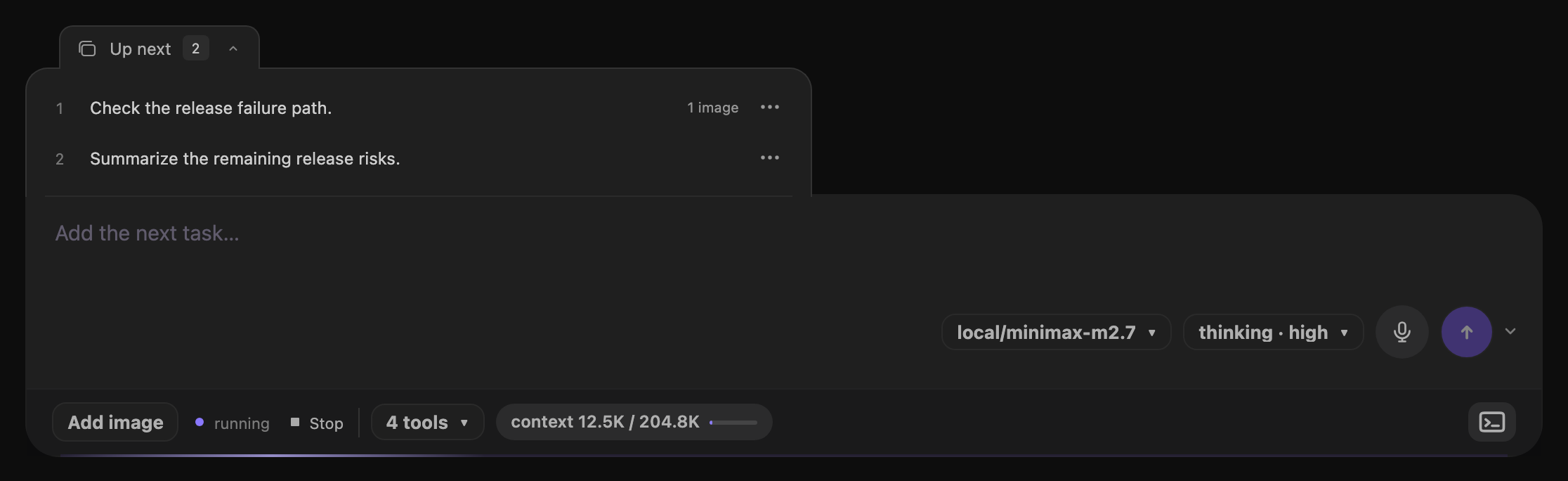
The Up next tab opens a tray above the composer input.
The closed Up next tab attaches to the composer's top-left edge and shows the task count. Select the tab to open the tray. The tab moves above the list while the input and footer stay fixed. The tray fills the available width in a narrow composer, including mobile layouts.
With the terminal open, the list scrolls within the remaining space above the composer.
Each task has one actions menu:
- Edit changes the task text and holds the queue.
- Move up and Move down change the task order.
- Steer now sends the task to the agent's next accepted input point.
- Remove deletes the unsent task.
Actions are unavailable while a task shows Sending.
Text edits keep attached images. Save and Cancel leave the queue held. Select Resume after you save or cancel the edit. Closing the tray, switching sessions, or visiting Home keeps an unsaved edit. A browser reload discards these local edits.
The backend keeps pending tasks when you refresh the browser or switch sessions. Reload runtime also keeps pending tasks, but holds them until you select Resume. Pending tasks do not survive a backend restart.
Steer an active run
Enter a message and press Option+Enter. You can also select Send options, then Steer current run.
Steering changes the active run at its next accepted input point. If the queue is held, select Resume before you steer.
Sent to agent separately shows waiting inputs that pi has already accepted, labeled Steering or Follow-up. You cannot edit, reorder, or remove these inputs from the tray.
Follow-up refers only to accepted pi input. Unsent Leyline tasks remain under Up next.
Stop an active run
Select Stop generation, shown as Stop with a square while the agent runs. Stop interrupts the run and holds the remaining unsent tasks.
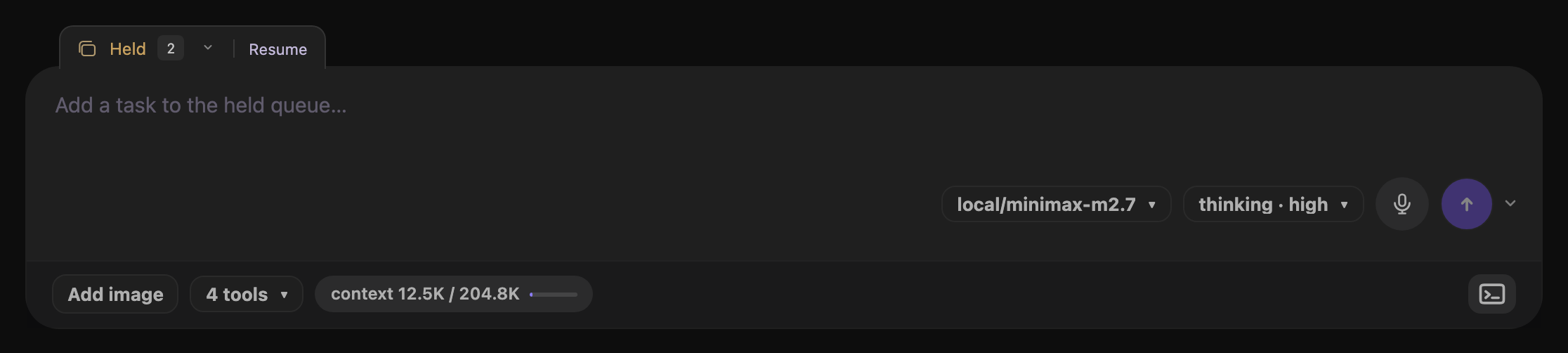
The closed Held tab keeps Resume available without opening the tray.
Select Resume to let Leyline send the remaining tasks. Until then, new tasks also enter the held queue. When the queue becomes empty, the hold clears and the idle composer returns to normal Send. Stop with no pending tasks does not hold future submissions.
The hold applies only to unsent tasks, not inputs under Sent to agent.
Escape closes an open menu, tray, drawer, dialog, preview, or edit mode first. With no open surface, Escape stops the active run.
Run shell commands
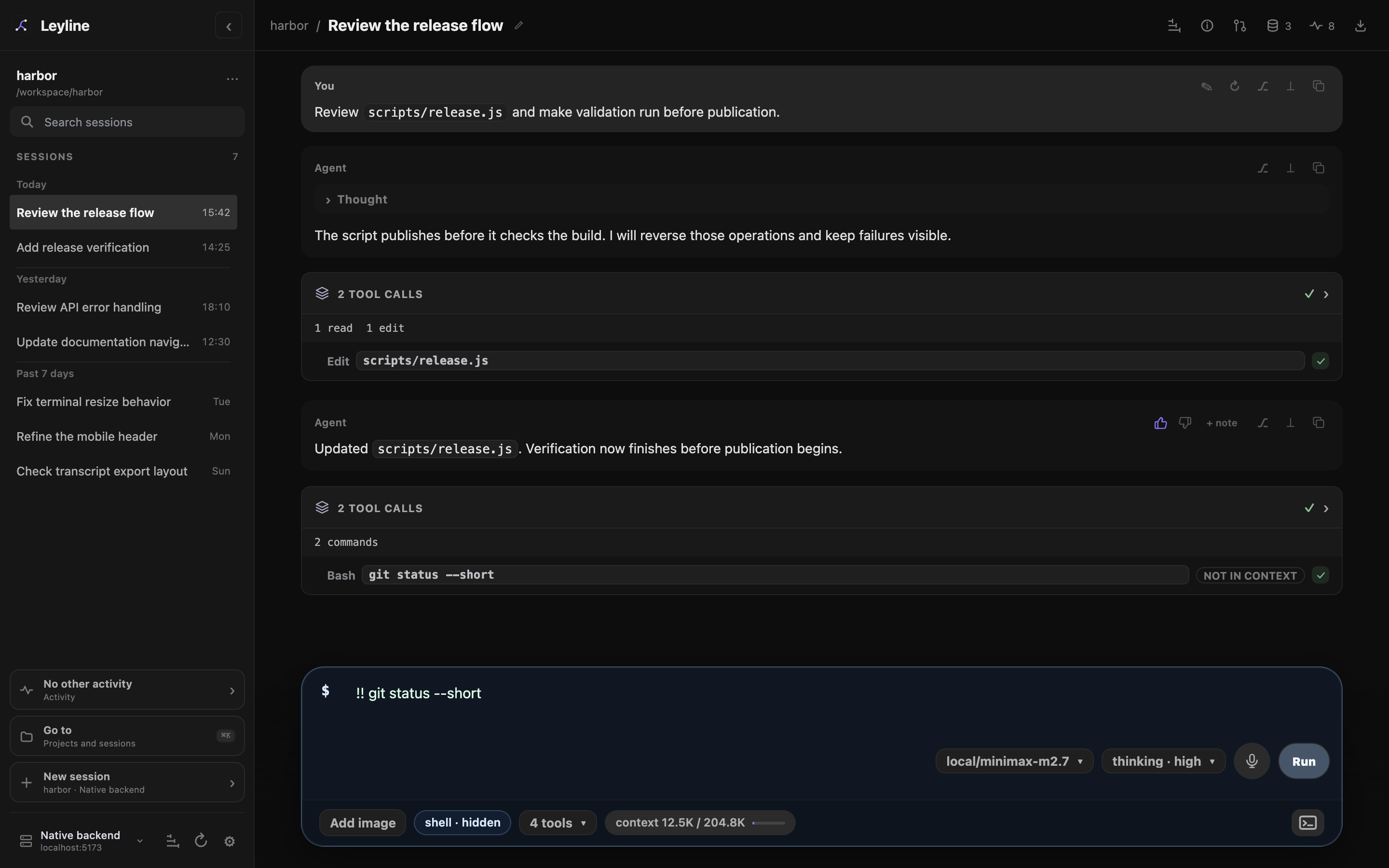
Shell labels show whether command output enters the session context.
Start the draft with one of these prefixes:
! commandincludes command output in session context.!! commandexcludes command output from session context.
The composer shows shell · context or shell · hidden. The saved tool row shows in context or not in context.
Shell commands cannot include images. Only one shell command can run in a session at a time.
Compact the context
Enter /compact to compact the session. Add text after the command to supply custom instructions.
/compact keep the decisions and unresolved questionsCompaction cannot run during an agent response. It cannot include images, and it cannot run while you edit a message.
Select slash commands and helpers
- Enter
/and part of a command name. - Use Arrow Up or Arrow Down to move through results.
- Press Tab or Enter to insert the selected item.
Results can be pi commands, prompt helpers, or skills. The source label is Command, Prompt, or Skill.
Press Escape to close the picker.
Paste image attachments
Paste PNG, JPEG, GIF, or WebP images into the composer. Select × on an attachment to remove it.
Leyline sends images directly to a model that supports image input. For other models, Leyline saves each image locally. It instructs the model to call vision_agent when its turn starts. The tool call and result appear in the transcript.
If no vision model is configured, the warning blocks submission. Open Settings → Agent defaults and select a Vision model. Use Project settings or Session details for narrower overrides.
Shell commands and /compact cannot include images. Vision delegation does not run for extension slash commands, so do not attach images to those commands.
The current composer has no fixed image count or byte limit. Provider and request limits can still reject large attachments.
See Images and previews for model scope and context behavior.
Use browser dictation
- Select Start dictation.
- Speak after the browser starts recognition.
- Select Stop dictation when the draft is complete.
Leyline appends final recognized text to the draft. Browser microphone permission is required.
Dictation is not supported in Electron. It is also unavailable when the browser does not provide the Web Speech API.