
Terminal
The terminal is a bottom drawer for the selected session CWD.
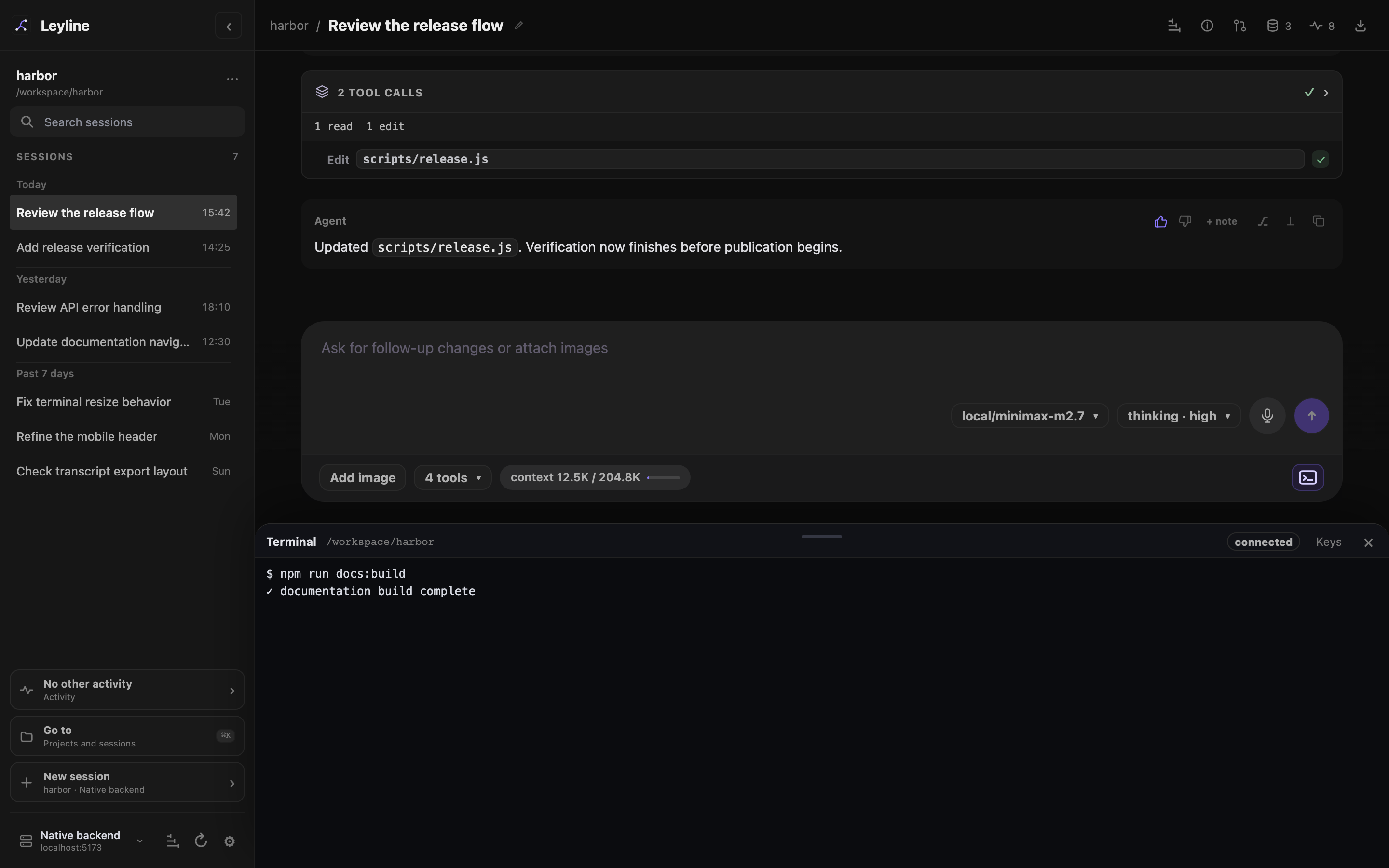
The terminal shares the workbench without replacing the transcript or composer.
Open the terminal
Select Open terminal in the composer context row. The drawer opens and connects a login shell.
In Electron on macOS, press Command+Shift+T to open or close the terminal.
The terminal requires a selected session. It is not available on the start screen. Opening it closes any trace view without stopping trace capture.
Check the connection
The terminal header shows its CWD and one of these states:
- connecting
- connected
- error
- exited
- closed
The terminal receives the current process environment and uses the configured login shell.
Resize the terminal
Drag the resize handle at the top of the drawer.
You can also focus the handle and press Arrow Up or Arrow Down. Each key press changes the height by 24 pixels.
Change the terminal CWD
Select another session while the terminal is open. Leyline closes the old terminal connection and opens a new one for the selected session CWD.
Leyline also reconnects after you create, fork, or reset a session. A reconnect starts a new shell process.
Close the terminal
Select × in the terminal header. You can also select Close terminal in the composer.
Closing the drawer ends the current terminal process and connection.