
Deep research
Deep research turns one question into a source-backed report. A lead agent plans the work, runs bounded research threads, and synthesizes their evidence.
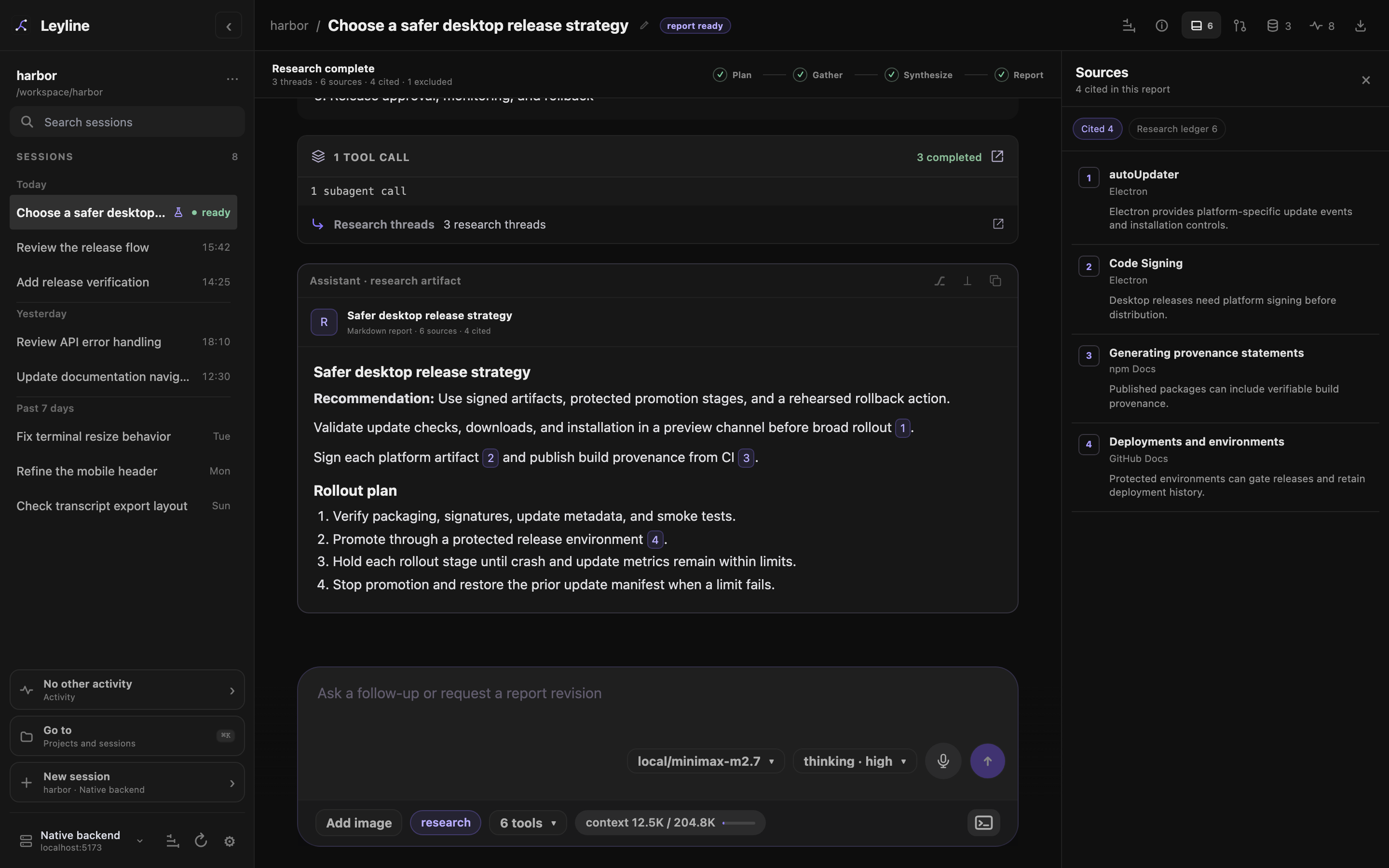
The report stays in the transcript while the source rail shows cited evidence.
Start a research session
- Open the start screen and select a project.
- Select research below the composer.
- Enter the question that Leyline must investigate.
- Press Enter or select Send message.
The heading changes to What should we investigate? when research mode is active. The research control appears only when the selected backend supports research sessions.
Leyline creates a new research session and starts the run immediately. The lead records a short plan before it delegates work. It does not wait for plan approval unless you ask it to pause.
The sidebar New session action creates a normal session. Shell mode also creates a normal session.
Follow the research phases
The phase bar shows four steps:
- Plan: The lead divides the question into independent threads.
- Gather: Research workers collect and assess source evidence.
- Synthesize: The lead compares the thread results and builds the citation ledger.
- Report: The lead writes the final cited report.
A research plan normally contains two to five threads. The Research threads row stays compact inside Activity. Select it to open the subagent inspector, then select a thread to read its prompt, source count, status, and result.
Select Open child session in the inspector to open the worker's transcript. Use Command-click, Ctrl-click, or middle-click on that control to open it in a new tab or window. The child transcript contains the worker's tool calls, source work, and final result.
The sidebar marks each research session with a flask. During a run, the row can show its current phase or gather N/N. A selected completed session shows ready.
Inspect research traces
Use Session traces to inspect the lead's recorded model calls, tools, timing, and usage. Available Child sessions links open worker transcripts. The trace explorer also lists captured worker runs on the selected backend.
Traces are separate from the research ledger and report. Capture starts on for new runs and can retain source content and prompts. See Tracing for controls and privacy.
Direct an active run
Enter a message and press Option+Enter to steer the lead. The lead receives steering at its next accepted checkpoint.
Press Enter to add an editable task to Up next. Leyline sends the task after the active run. Select Send options beside the send arrow for Queue next task or Steer current run.
Select Stop generation to interrupt the parent run and hold remaining unsent tasks. Select Resume to release a held queue before you steer or continue queued work.
A stopped or failed run keeps its persisted plan, threads, and sources. With no pending tasks, send another prompt when you want the lead to continue. See Composer for queue controls.
Verify sources and inspect the research ledger
The desktop source pane opens when a research session has sources. Use the source control in the header to close or reopen it.
The pane has two views:
- Cited shows sources that the final report cites. This is the default view for a completed report.
- Research ledger shows each cited, supporting, and excluded source.
A cited row shows the citation number, title, publisher, publication date when available, and a short claim summary. Select a web source row to open the source. A local source row shows its path.
The research ledger adds the thread, source kind, and status. An excluded row shows its exclusion reason.
Select a numbered report citation to open its source preview. The preview shows the claim, evidence, source details, and external link without hiding the report.
To close the preview, do one of these actions:
- Select outside the preview.
- Scroll the report.
- Resize the window.
- Press Escape.
A valid citation uses a numeric Markdown link such as [3](https://example.com/source). The number and target must match a non-excluded ledger source.
Leyline checks citation identity. It does not determine whether the source proves the report's claim.
Use sources on mobile
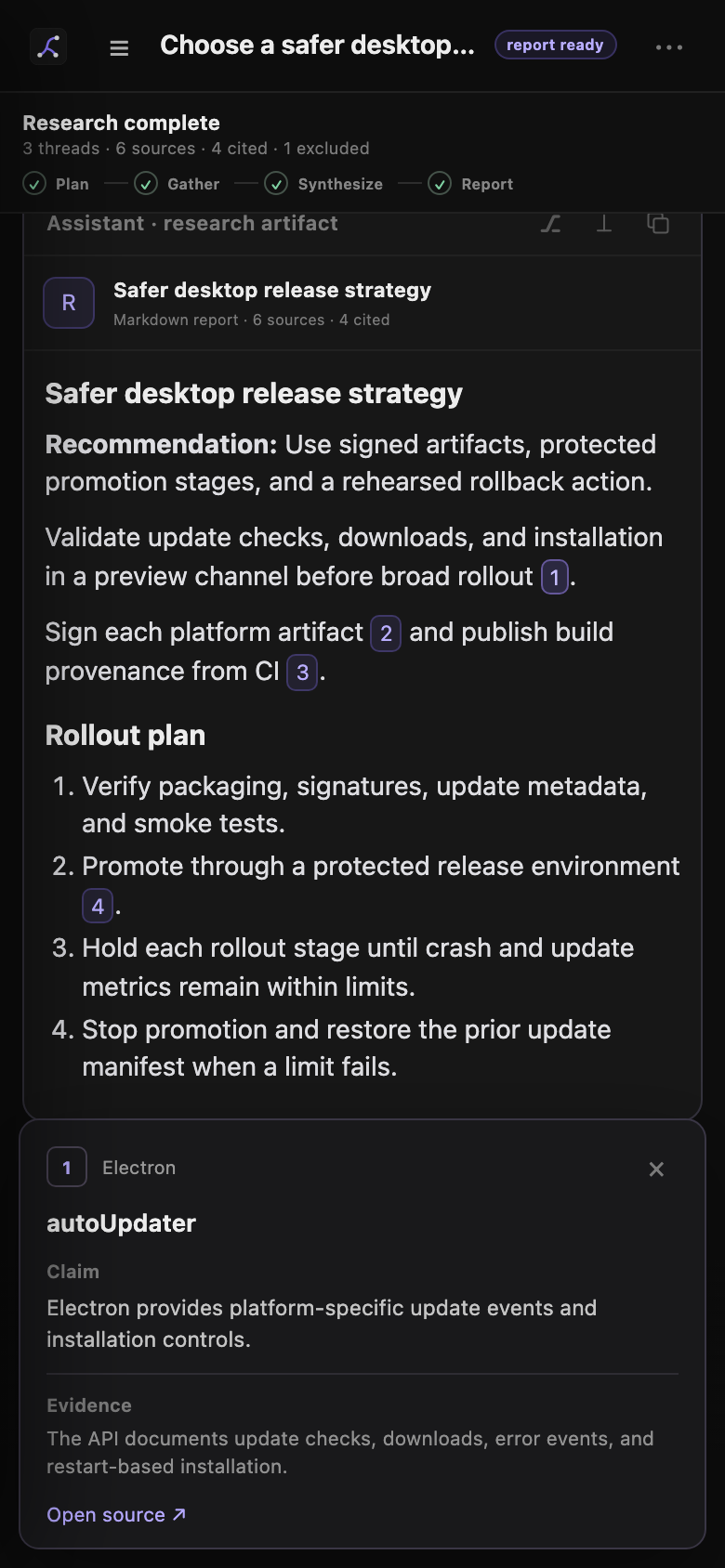
A report citation opens its source preview as a bottom sheet.
Select a numbered citation to verify its claim and evidence. Select Open source to open the web source. Select × to close the preview.
Select the source control in the mobile header to open the source pane. The Cited and Research ledger views use the full screen width.
Read and revise the report
A valid final response becomes a research artifact in the transcript. Its heading shows the report title and source counts.
If a numeric citation is invalid, Leyline marks the research session as interrupted. The response remains in the transcript, but it does not become a completed research artifact.
Use the composer to ask another question or request a report revision. The lead receives the persisted research state with the next turn.
Research sessions support normal prompt edits, forks, resets, and refreshes. Forks keep branch research state and bind it to the new session. Resets rebuild state from the retained branch.
A backend process restart does not restart interrupted worker calls. Reopen the session and send a prompt to continue.
Export the research
Export transcript writes the report, research-thread results, and every ledger source to the HTML file. Thread results open in the exported subagent inspector. The export keeps cited, supporting, and excluded sources.
Exported citations are normal links. The standalone file does not focus a ledger card when you select a citation.