
Start screen
The start screen appears when no session is selected. One submission can create a session and send its first prompt.
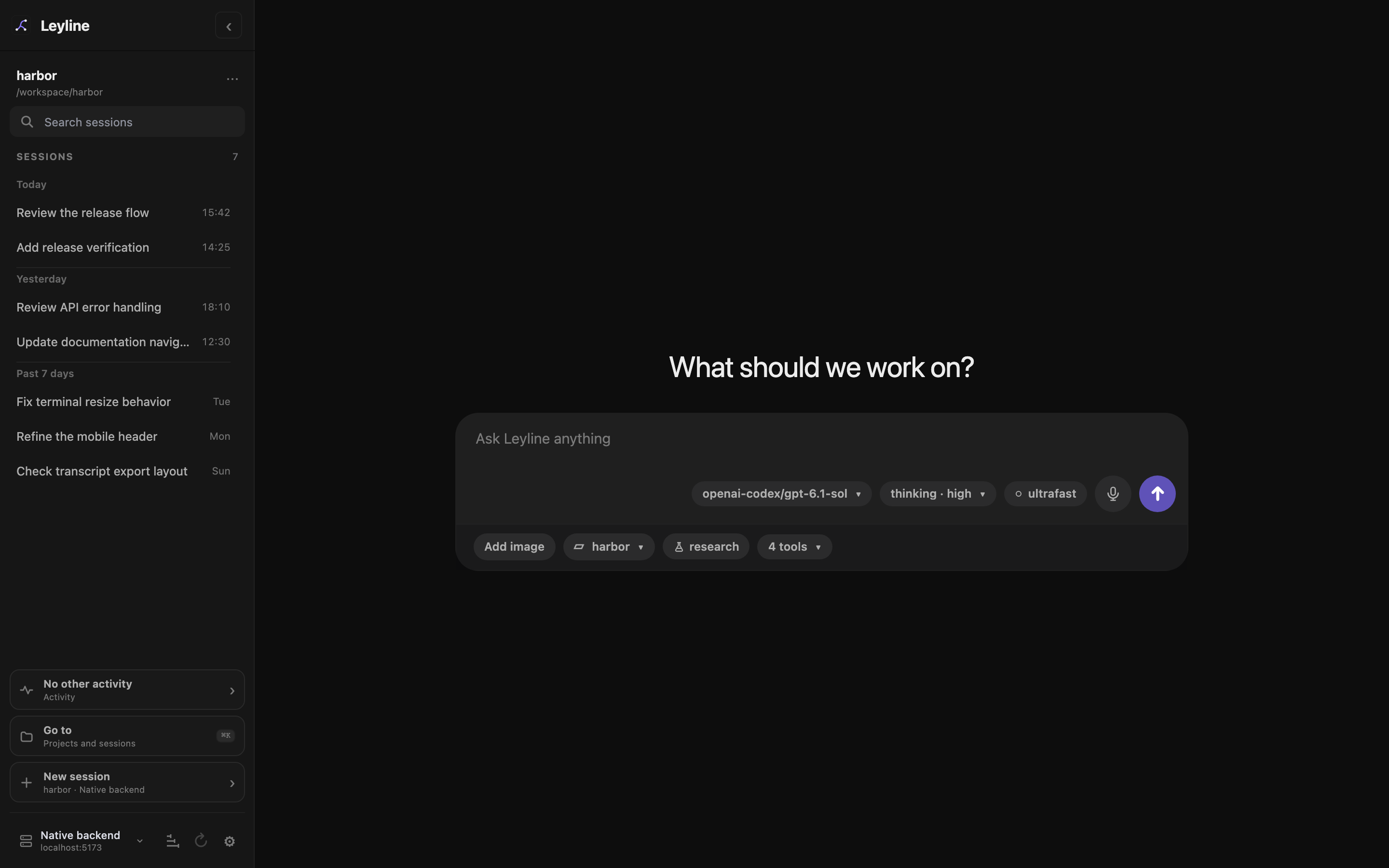
The start screen stages the project, session kind, and runtime choices before session creation.
Select a project
- Select the project name below the composer.
- Enter text in Search projects to filter the project list.
- Select a project.
The project control shows Choose project when no project is selected.
Command-click, Ctrl-click, or middle-click a project choice to open the start screen for that project in a new tab or window. The current window does not change.
To use a different folder, select Add new project. The Add project browser opens.
Add a project folder
- Enter an absolute path,
~/path, or relative path. - Use Arrow Up or Arrow Down to move the highlight.
- Press Enter to open the highlighted folder.
- Press Command+Enter or Ctrl+Enter to add the typed path.
Select Home to return to your home folder. Press Escape or select Cancel to close the browser.
If the typed folder does not exist, the action changes to Create & add. Leyline creates that folder when you confirm the action.
Select the model and thinking level
- Select the model control.
- Enter text in Filter models if the list is long.
- Select a model.
- Select the thinking control.
- Select an available thinking level.
These choices are staged for the new session. A model change can also change the available thinking levels.
For supported OpenAI Responses models, the lowercase ultrafast chip appears beside these controls. It is off by default. Click it to stage the choice without a confirmation dialog. It uses premium pricing and resets when you change the model. See Runtime controls for model and authentication limits.
Inspect enabled tools
Select the tool-count control, such as 12 tools. The Enabled tools list shows the tools for the staged runtime.
The list is read-only. It can show 0 tools when no tools are enabled.
Start deep research
Select research below the composer before you send the first prompt. The heading changes to What should we investigate?
Leyline creates a research session and starts its planning phase. The control appears only when the selected backend supports deep research.
Shell mode always creates a normal session. See Deep research for phases, source evidence, citations, and reports.
Check trace capture before a run
Select the Trace explorer icon button at the bottom of the sidebar. The explorer opens without a selected session and lists recorded runs on the selected backend.
Capture starts on for new runs. Expand Capture new runs in the trace footer to change it before submitting private data. Traces can retain prompts and tool results. See Tracing.
Send the first prompt
- Select a project.
- Enter the first task in Ask Leyline anything.
- Press Enter or select the send button.
Leyline creates the session first. It then applies the staged model, thinking level, and ultrafast choice before the prompt.
Press Shift+Enter to add a line break.
Paste images
Paste one or more images into the composer. Leyline adds each image to the attachment tray.
Select × on an attachment to remove it. Leyline sends images directly when the staged model supports image input.
For other models, Leyline uses the configured project or global vision model. When the prompt runs, the model calls vision_agent to inspect the images. The tool call and result appear in the transcript. If no vision model is configured, the warning blocks submission.
Open Settings → Agent defaults to select a global Vision model. Use Project actions → Project settings → Settings for project overrides. Session overrides require an existing session.
Leyline accepts PNG, JPEG, GIF, and WebP image data. The current composer has no fixed count or byte limit.
Use dictation
Select Start dictation to add recognized speech to the draft. Select Stop dictation to stop.
Dictation uses the browser Web Speech API. The control is disabled in Electron and in unsupported browsers.
Select a slash command
- Enter
/followed by part of a command name. - Use Arrow Up or Arrow Down to select a result.
- Press Tab or Enter to insert the command.
The list identifies each item as Command, Prompt, or Skill. Press Escape to close the list.
Run a shell command
Start the draft with ! or !!.
! commandruns the command and includes its output in session context.!! commandruns the command and excludes its output from session context.
The composer shows shell · context or shell · hidden. Shell commands cannot include image attachments.