
Tracing
Leyline includes Elune to record new agent runs on the selected backend. A trace keeps model calls, tool activity, timing, usage, and available input and output after the run ends.
Capture starts On for new runs. Earlier pi session logs are not backfilled. You do not need the standalone Elune Go server or PI_TRACE_URL.
Inspect a session run
- Open a session.
- Select Session traces in the workbench header.
- Use the Session run dropdown to select a recorded run.
- Select an observation to inspect its details.
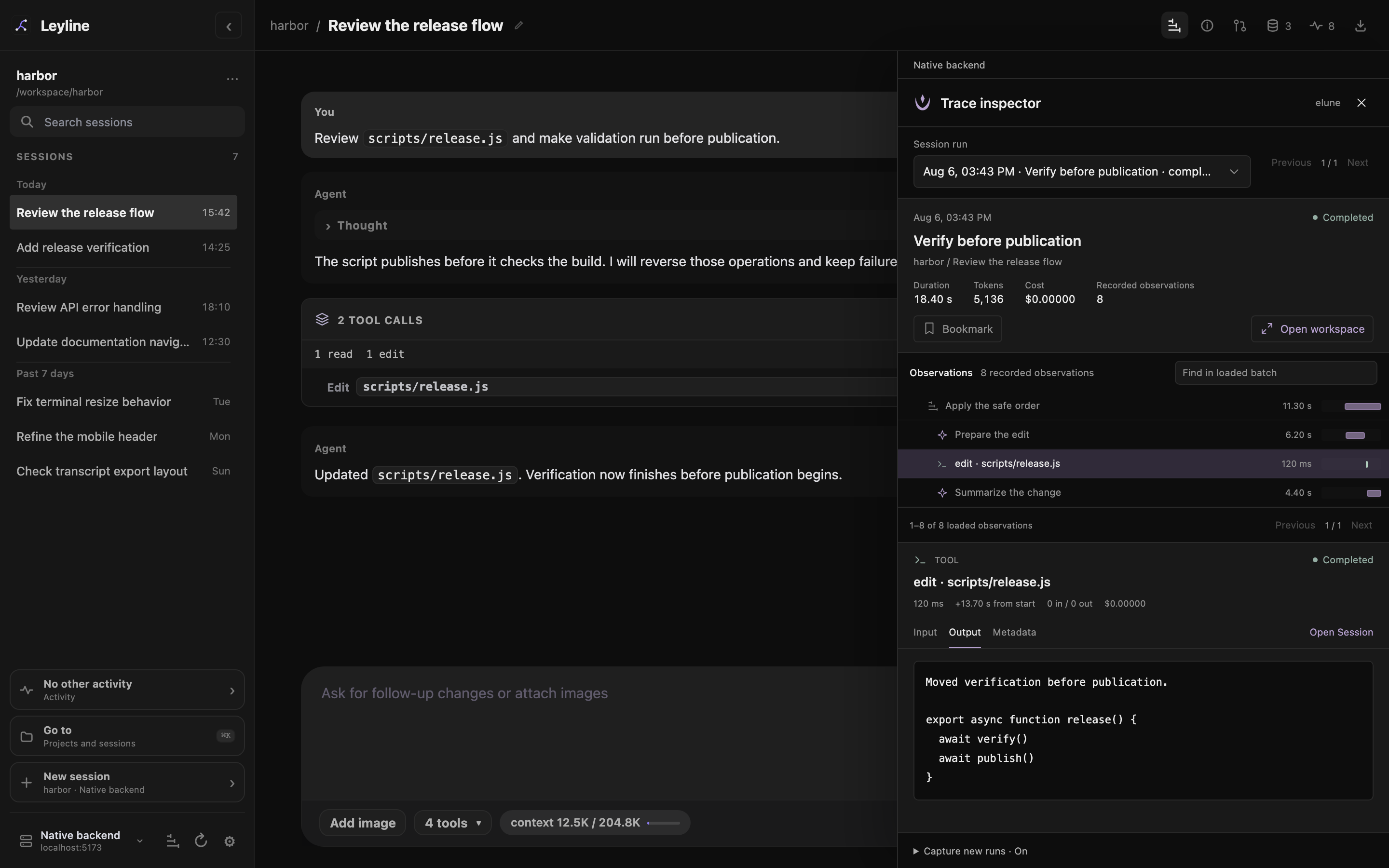
The inspector opens over the right side of the transcript.
The summary shows duration, tokens, cost, status, and the recorded observation count. An observation is one recorded operation, such as a model call or tool call.
Use Input, Output, and Metadata to read the selected operation. Select Run summary to inspect the trace itself. Available usage depends on what the model provider reports.
Select Bookmark to mark a trace. Select Bookmarked to remove the mark. Bookmarks persist on that backend.
Open session closes the trace view and opens the related transcript. When an entry link is available, Leyline scrolls to that entry. An entry can be unavailable after a branch change or reset.
Tool observations can show Child sessions links for delegated work, including subagents, research workers, and vision children. These links open the child transcript.
Captured manual compaction can appear as a separate pi-compaction run. Automatic compaction can appear within an active run. Compaction records show the available summary, outcome, and usage.
Open the tracing workspace
Select Open workspace from the inspector or explorer.
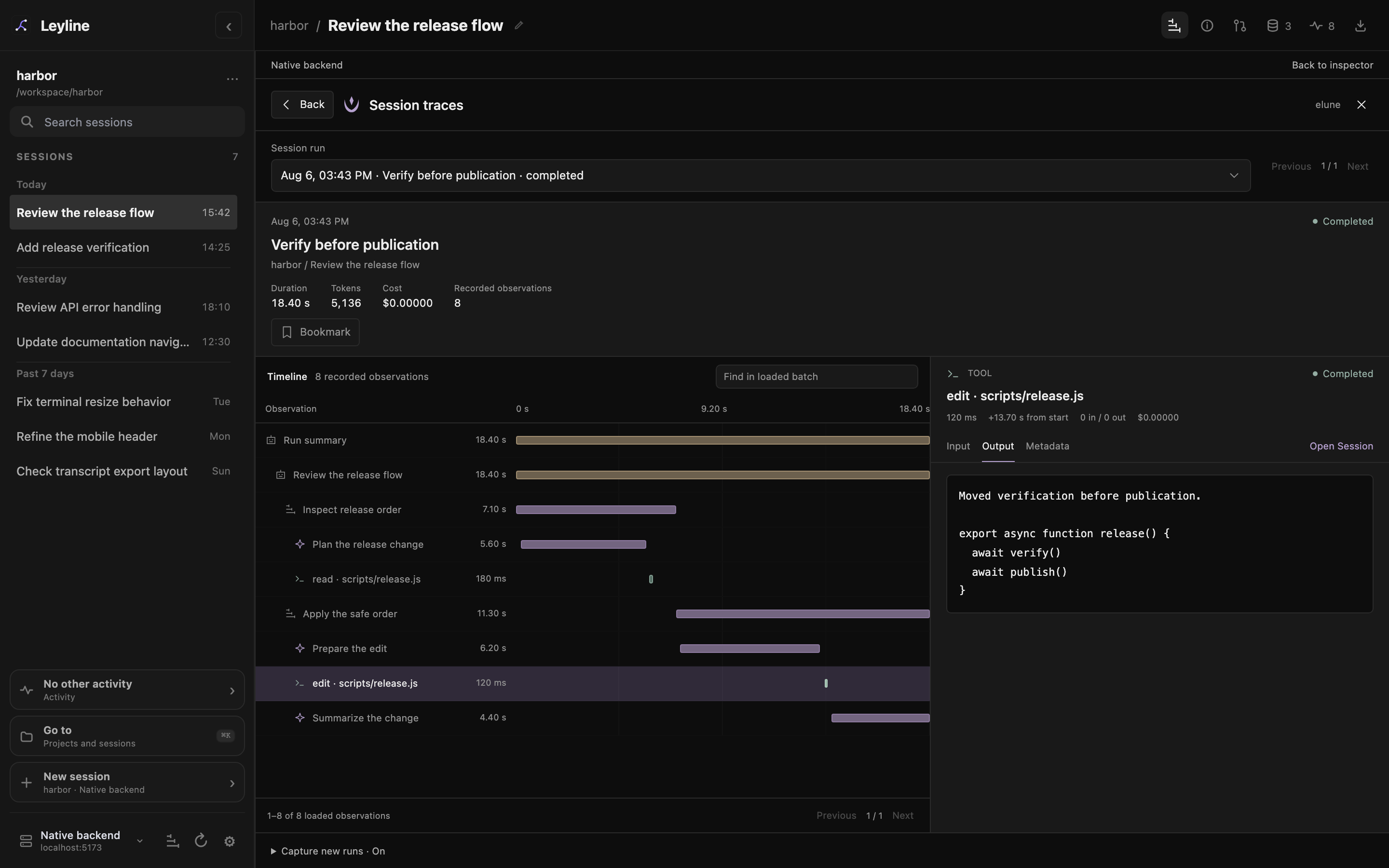
The workspace uses the area after the sidebar for the timeline and details.
The workspace keeps the selected trace, observation, content tab, and loaded observation batch. It does not select a different conversation session.
Select Back to return to the inspector or explorer that opened it. The current selection returns with you. Explorer filters and its results page remain in place.
Press Escape or select Close traces in the workspace to return to that same origin. In the inspector or explorer, either action closes traces. Closing traces does not stop capture or the agent run.
Opening Settings, another workbench drawer, or the terminal closes the trace view. Navigation to another session or backend also closes it and clears trace selection. Closing a view alone leaves the selected conversation session unchanged.
Browse traces across projects
Select the Trace explorer icon button at the bottom of the sidebar. Its tooltip and accessible label are Trace explorer. You can open it from Home without a selected session.
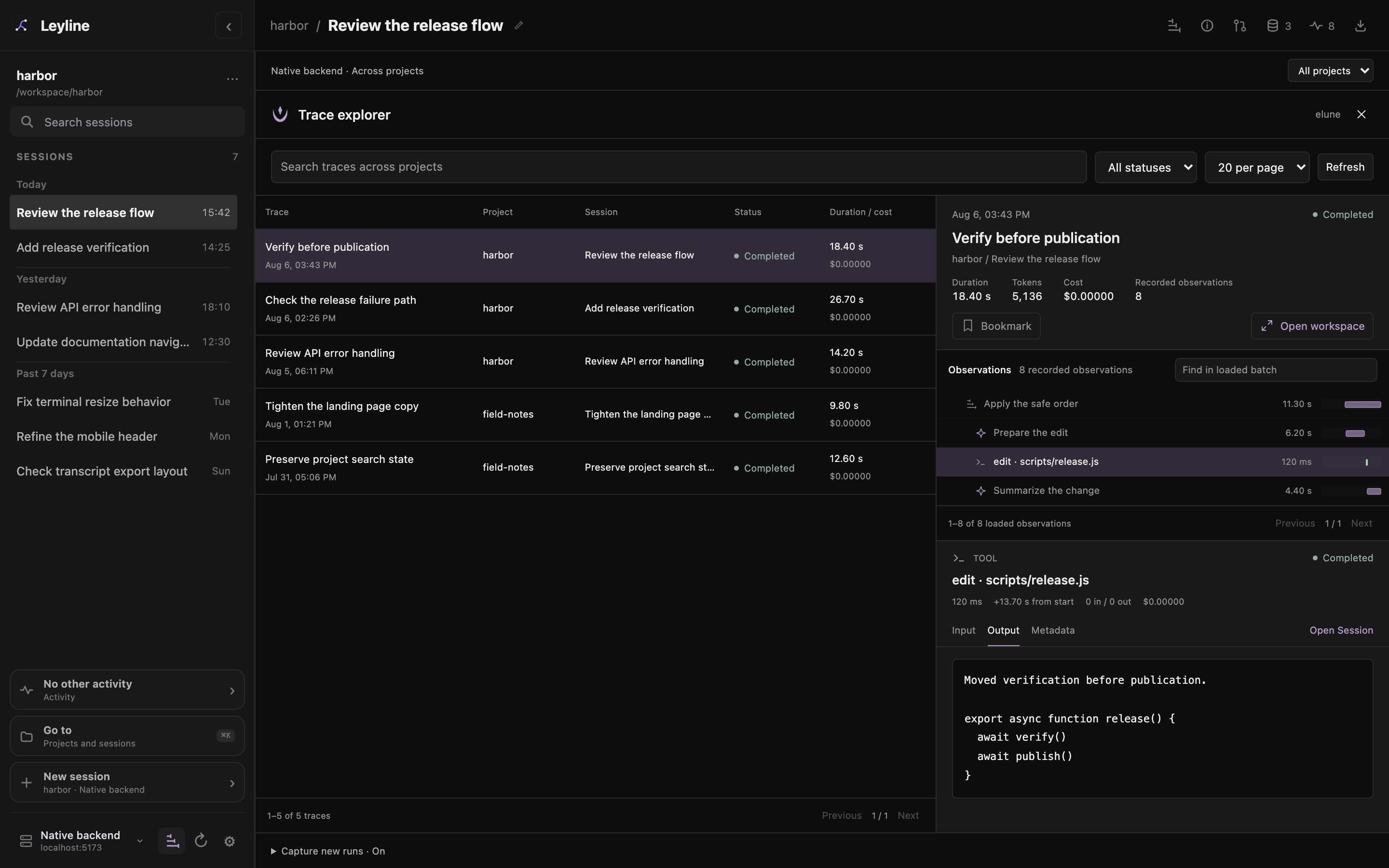
The explorer lists traces across projects on the selected backend.
Use these controls to narrow the results:
- Trace project selects one project or All projects.
- Search traces matches recorded trace fields, including names, session details, and available input and output. It is not a complete search of every observation payload.
- Trace status selects Completed, Running, Error, or Aborted.
- Traces per page selects 10, 20, or 50 results.
Select a row to inspect its preview. Select Open workspace for the timeline. Use Refresh if results appear stale.
The backend name appears above the view. The explorer never combines records from different backend connections. Switching connections opens that backend's separate trace collection and capture setting.
Control capture
- Open the inspector, workspace, or explorer.
- Expand Capture new runs in the footer.
- Select or clear the Capture new runs checkbox.
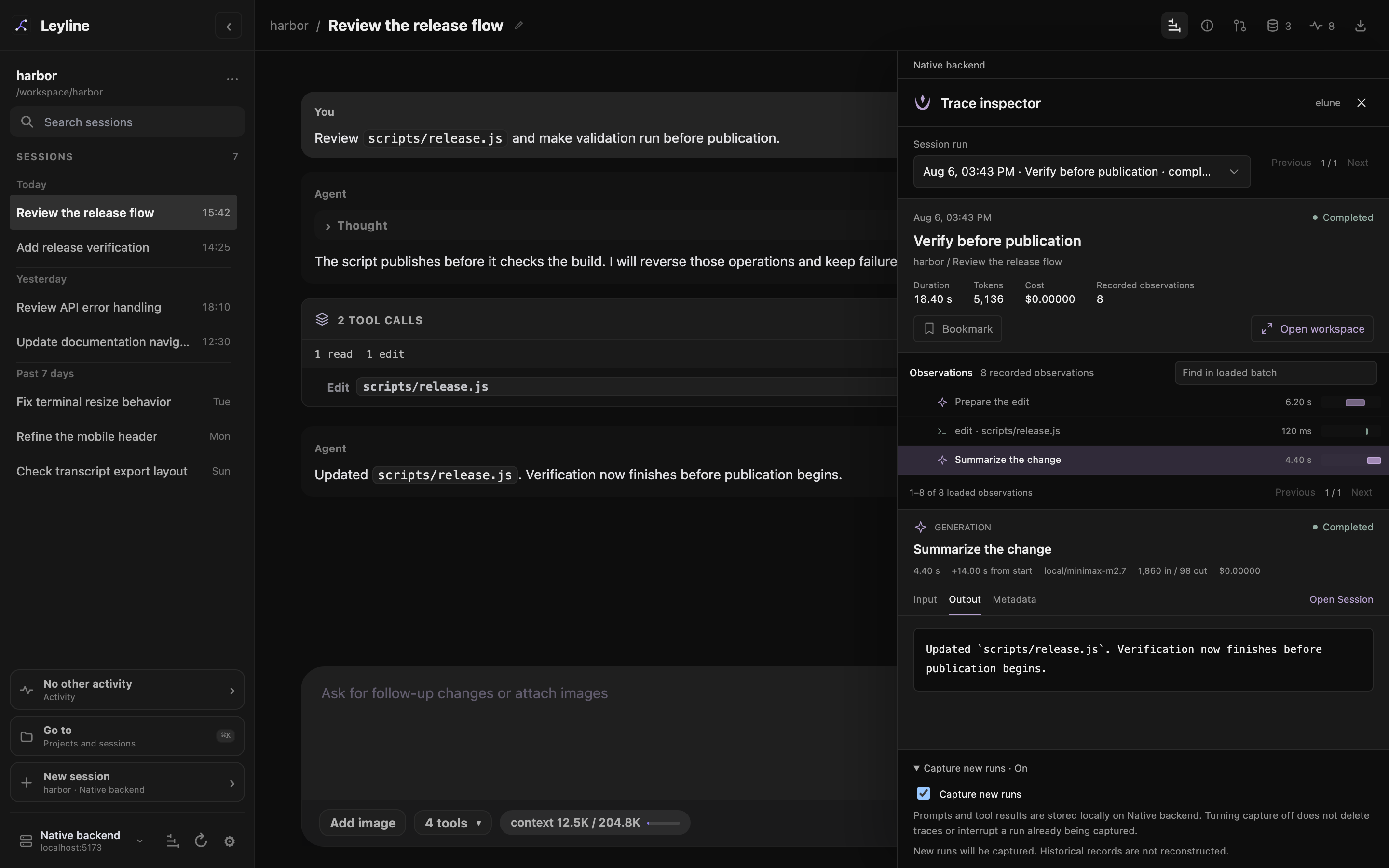
Capture controls belong to the trace panel, not a global Settings category.
The setting applies to future runs on that backend, across its projects. A run already under capture finishes its capture. Turning capture off does not delete older traces.
Capture continues when trace views are closed. Reopen a trace view to check its current setting. If you close the view during a pending change, reopen it to confirm the saved result.
A capture failure appears in the footer. Agent work can continue even when tracing fails. See Troubleshooting.
Read partial records
Large traces load observations in batches. Previous batch and Next batch change the loaded batch. The loaded range and recorded total appear below the observations.
Find in loaded batch searches only the loaded observation names, types, models, and statuses. It does not search all batches or their input and output. Load another batch to search it.
The Input and Output tabs show retained content, not complete raw provider requests or responses. Capture omits image payloads and thinking content.
The view reports omitted or truncated content when the stored record includes the corresponding markers. That missing content is not available in the stored trace. A separate Fields clipped on read notice means the stored content remains unchanged.
Long displayed payloads use character pages. An incomplete observation count has a notice only when the trace producer flags it.
Storage or capture failures can leave partial traces without a stored warning. A temporary backend error can disappear after restart. The absence of a warning does not prove that a trace is complete.
Status and metadata levels provide basic attention flags. They do not provide an evaluation dashboard or prove the quality of an agent's result.
Use traces on mobile
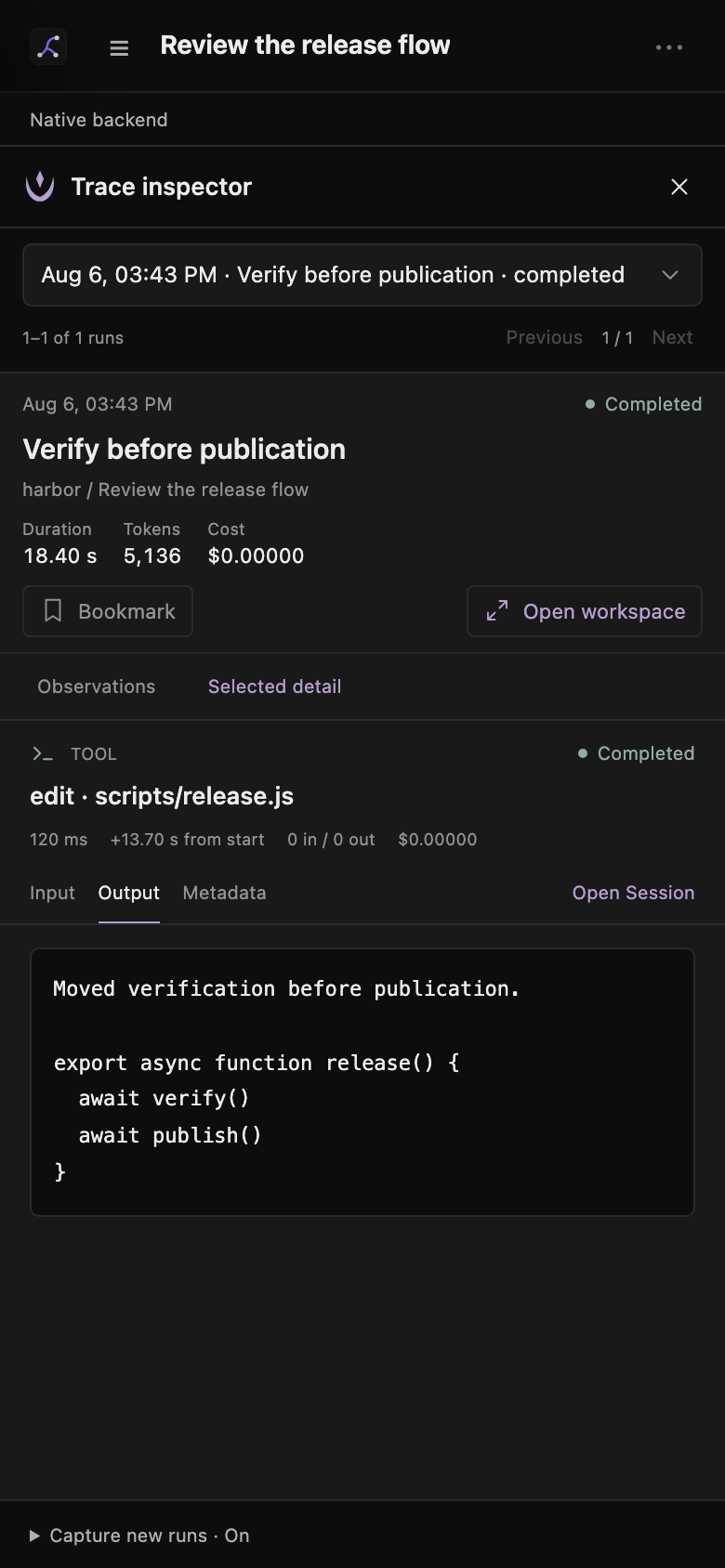
Trace views fill the width below the mobile header.
Use Observations or Timeline and Selected detail to switch panels. In the explorer, use Traces and Selected preview. The same run, capture, and privacy rules apply.
Keep trace data private
Traces stay on the selected backend. For a remote connection, local storage means that backend's computer, not the browser's computer.
Traces can contain raw prompts, tool arguments, tool results, file content, and private project metadata. Leyline does not provide trace encryption or guaranteed secret redaction. Treat the trace database and backend access as private.
Deleting a session or trashing a project does not delete its traces. Reset to here changes the session file but does not remove earlier trace data. Trace links can therefore point to missing sessions or entries.
Leyline has no automatic retention limit or expiry. It has no trace deletion or export control, and no trace deletion or export API. HTML transcript export does not include Elune traces. Turning capture off prevents future capture only.
The Events drawer holds recent events for the current page connection. Reloading clears that list. Traces are separate durable records. See Runtime events.
For storage, capture internals, and backend routes, see Elune integration.