
Manage memory
The Memory drawer shows memories that are visible to the selected session.
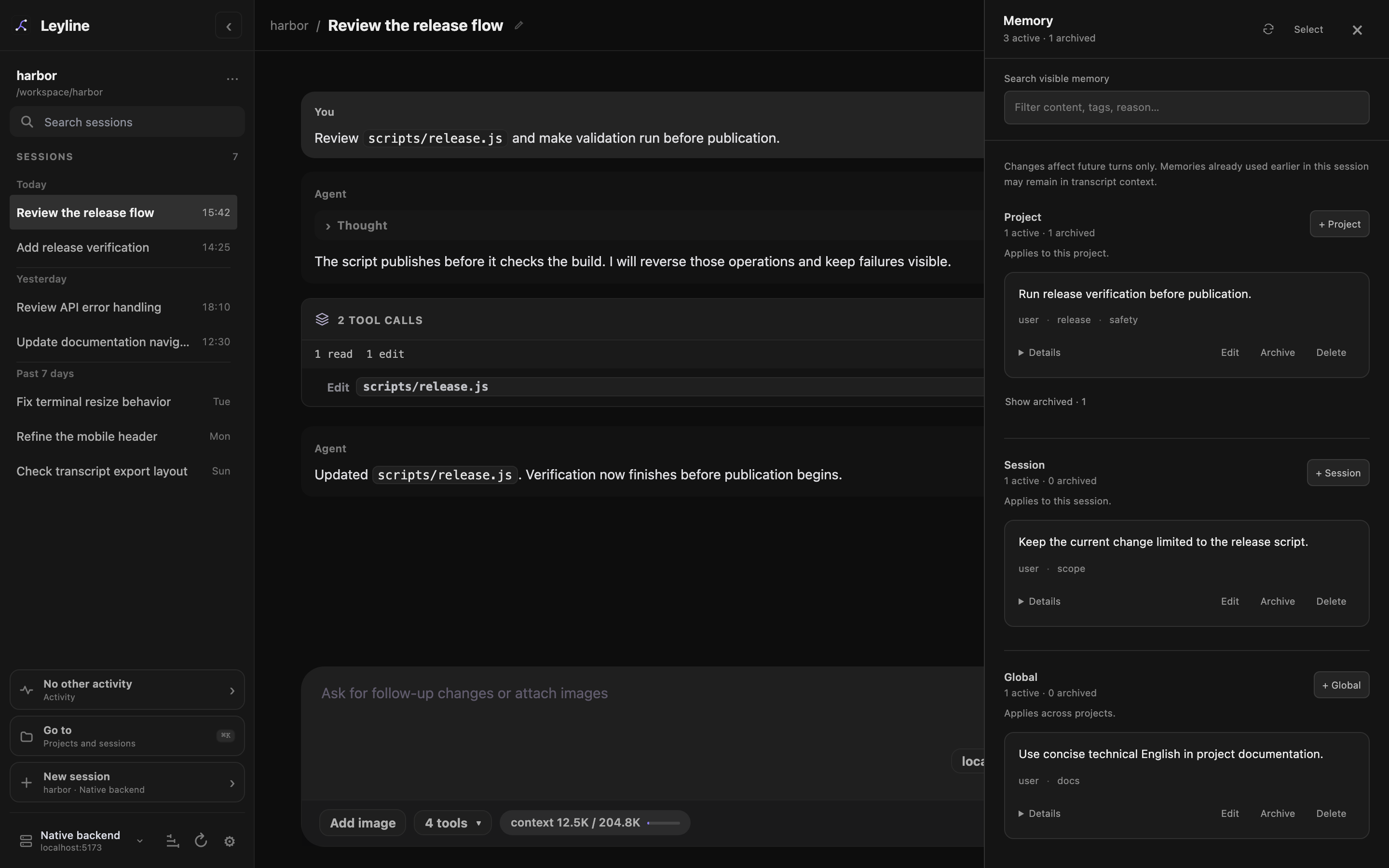
Visible Memory is grouped by the scope that controls where each record applies.
Open Memory
Select Memory in the workbench header. In Electron on macOS, press Command+Shift+M.
The header count shows active visible memories. The drawer header shows active and archived totals.
The drawer header and search field stay visible while the memory list scrolls.
Understand memory scopes
Leyline groups memory into three scopes:
- Project applies to sessions in the current project root.
- Session applies only to the selected session.
- Global applies across projects.
The Session section is unavailable until a session exists. The drawer shows only global memories and memories that match the current project or session.
Search visible memory
- Enter text in Search visible memory.
- Review the matching cards.
Search matches content, tags, reason, and source. All entered words must match the same memory.
A search also shows matching archived memories. Clear the search to restore the normal archived sections.
Create a memory
- Select + Project, + Session, or + Global.
- Enter the memory in Memory markdown….
- Add optional comma-separated tags.
- Select Save.
New memories are active. Only one create or edit form can be open at a time.
Edit a memory
- Select Edit on a memory card.
- Change the Markdown or tags.
- Select Save.
Select Cancel to discard the form. Leyline asks before you close the drawer with unsaved form changes.
Inspect memory details
Each card shows its source and tags. Select Details at the bottom of a card to show its ID, dates, and optional reason.
Select Copy beside the ID to copy it.
Archive and restore memory
Select Archive to make an active memory inactive. Archived memory remains stored but does not apply to later turns.
Select Show archived in a scope to view its archived cards. Select Restore to make an archived memory active again.
Delete a memory
Delete permanently removes the memory. The Memory Inspector does not provide a restore action for deleted memory.
- Select Delete on the memory card.
- Review Delete permanently?.
- Select Delete.
Change multiple memories
- Select Select in the drawer header.
- Select the required memory cards.
- Select Archive, Restore, or Delete in the bulk bar.
- Select Done when the work is complete.
Bulk Delete asks for confirmation and permanently removes all selected memories.
Apply changes to later turns
Memory changes affect future turns only. Earlier transcript context can still contain memory text that pi already received. Traces can also retain memory text in recorded input or tool results. Deleting a memory does not remove it from those earlier records.
Select Refresh memory, the circular-arrow button in the drawer header, to reload the visible memory list. The drawer also refreshes after an active turn ends while the drawer is open.