
Projects and search
Leyline uses each session CWD as a project. The project name is the final folder name.
The sidebar keeps one current project in focus. It shows the project path, session search, session list, and project shortcuts.
Find a session in the current project
- Enter text in Search sessions.
- Select a matching session.
Search matches session names and IDs in the current project. Each search term must match one of those values.
Search does not inspect transcript content. Clear the field to restore the full session list.
Use Go to
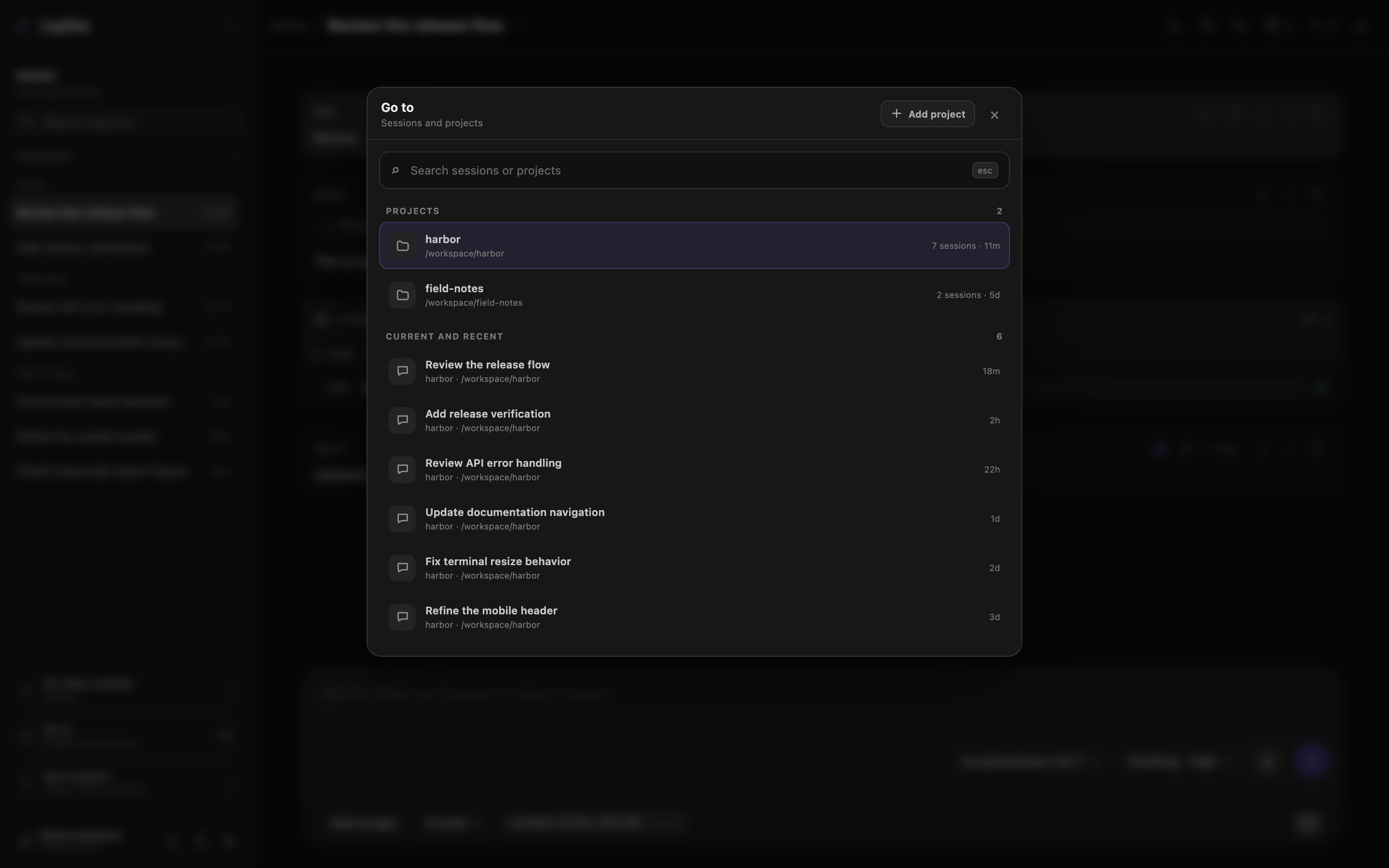
Go to searches projects and sessions from one place.
- Select Go to, or press Command+K or Ctrl+K.
- Enter text in Search sessions or projects if necessary.
- Select a project or session.
The default view shows recent projects and current or recent sessions. A query searches all project names, CWDs, session names, and session IDs.
When you select a project, Leyline opens the last session that you used in that project. Otherwise, it opens the most recent session.
If the project has no sessions, Leyline opens the start screen for that CWD. Command-click, Ctrl-click, or middle-click a project or session result to open that same target in a new tab or window.
Select Add project in the navigator header to add a project folder.
Leyline ignores the shortcut during deletion confirmation, transcript editing, or session renaming.
Press Escape or select the shaded area to close the navigator.
Supervise session activity
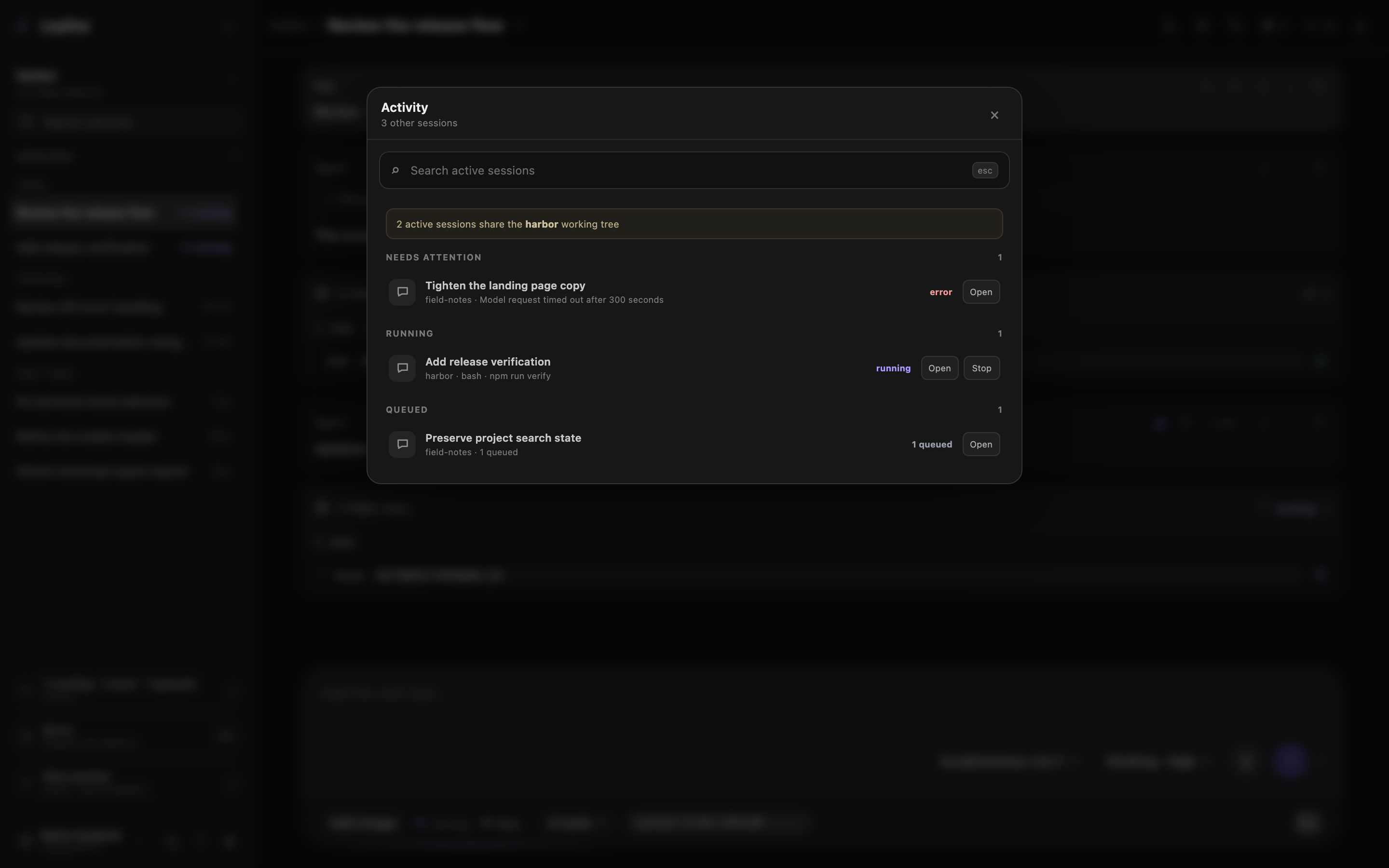
Activity keeps live session state and controls in one compact view.
Select Activity at the bottom of the sidebar.
The navigator excludes the selected session. It includes activity from every project, including other sessions in the current project:
- Needs attention contains unread sessions, errors, and pending confirmations.
- Running contains running and compacting sessions.
- Queued contains sessions with queued tasks or accepted inputs, including held queues.
A row shows the project and the current tool target, exact runtime error, or queue state when available. Pending confirmations show Waiting for confirmation. Open the session to select Confirm or Cancel on its confirmation card.
Select Open to open the session. Use a modified click on Open to open it in a new tab or window. Select Stop to interrupt a streaming agent run without opening it. Stop also holds that session's remaining unsent tasks. Open the session and select Resume to release its held queue.
Compaction does not show Stop because the interrupt action cannot cancel compaction.
Activity warns when multiple sessions share one CWD and have active work or queues that are not held. A held queue alone does not trigger this warning. The warning identifies collision risk. It does not attribute working-tree changes to a session.
Use Search active sessions to match a session title, project, CWD, tool target, or error detail.
Search recorded runs
Select the Trace explorer icon button at the bottom of the sidebar to browse recorded runs. It covers all projects on the selected backend. Use its project, search, and status filters to narrow the list.
Session search and Go to do not search trace data. The explorer does not combine traces across backend connections.
Open Project settings
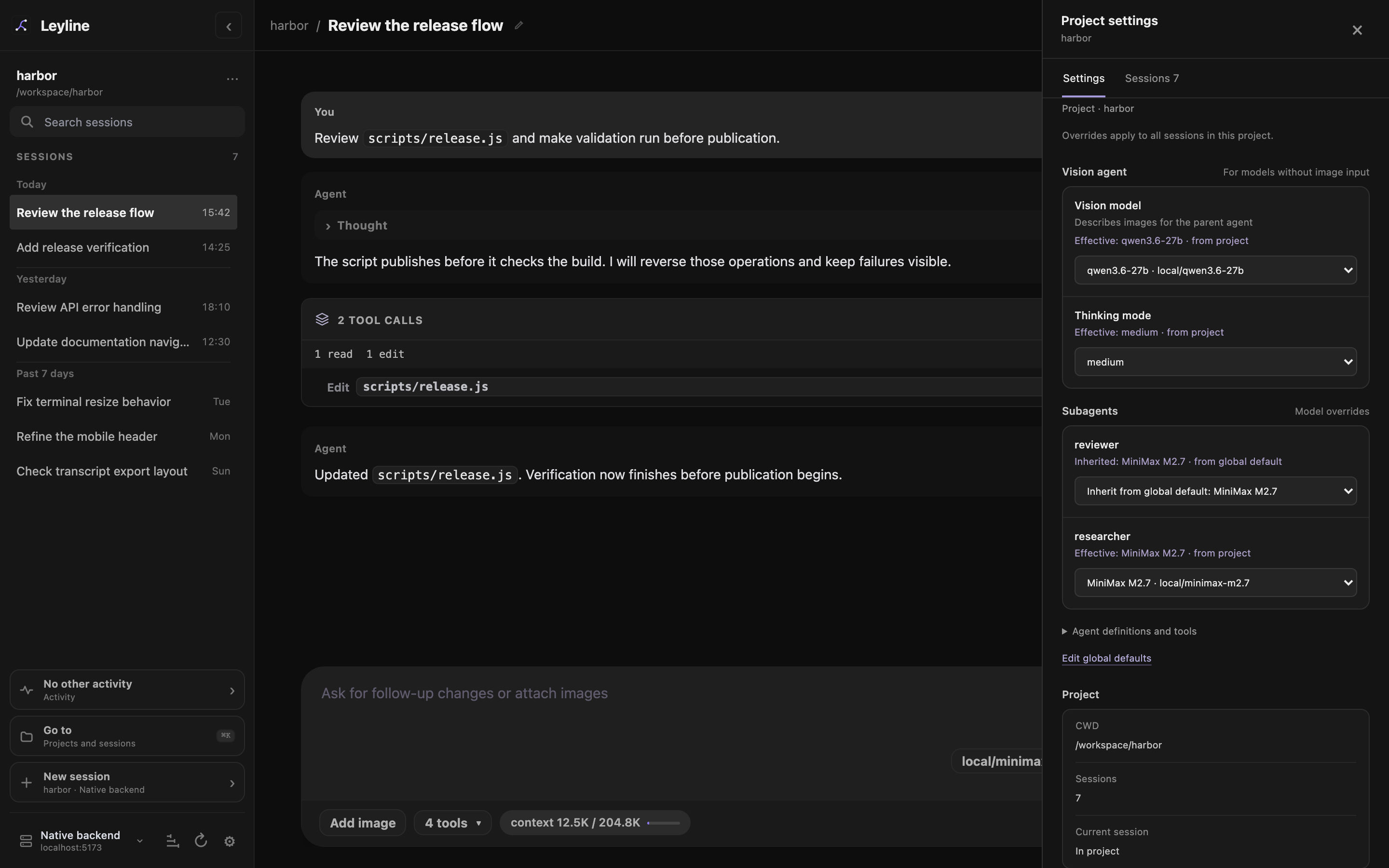
Project settings keeps overrides separate from global defaults and session overrides.
- Select Project actions beside the current project.
- Select Project settings.
The Settings tab contains project-level subagent and vision overrides. It also shows the CWD, session count, and current-session relationship. Edit global defaults opens Agent defaults in the global Settings modal.
Select the Sessions tab to filter, sort, create, open, rename, or delete sessions in the project.
The Project actions menu also contains Trash project. This action moves all project sessions to Leyline trash after confirmation. It does not delete the project's Elune traces. See Trace privacy.
Filter and sort project sessions
In Project settings → Sessions, enter a name or session ID in Filter sessions. This filter uses text containment.
Select Recent to sort by time. Select Title to sort by session title.
Manage a project session
Each session card provides these actions:
- Open selects the session.
- Rename changes its displayed name.
- Delete opens the session deletion confirmation.
The selected session shows Selected instead of Open. Use a modified click on either control to open that session in a new tab or window.
Select New session to create an empty session in the project CWD. Use a modified click to create one empty session in a new tab or window.
Delete moves the session JSONL file to Leyline trash. Confirm this effect in the Delete session? dialog.
Add a project folder
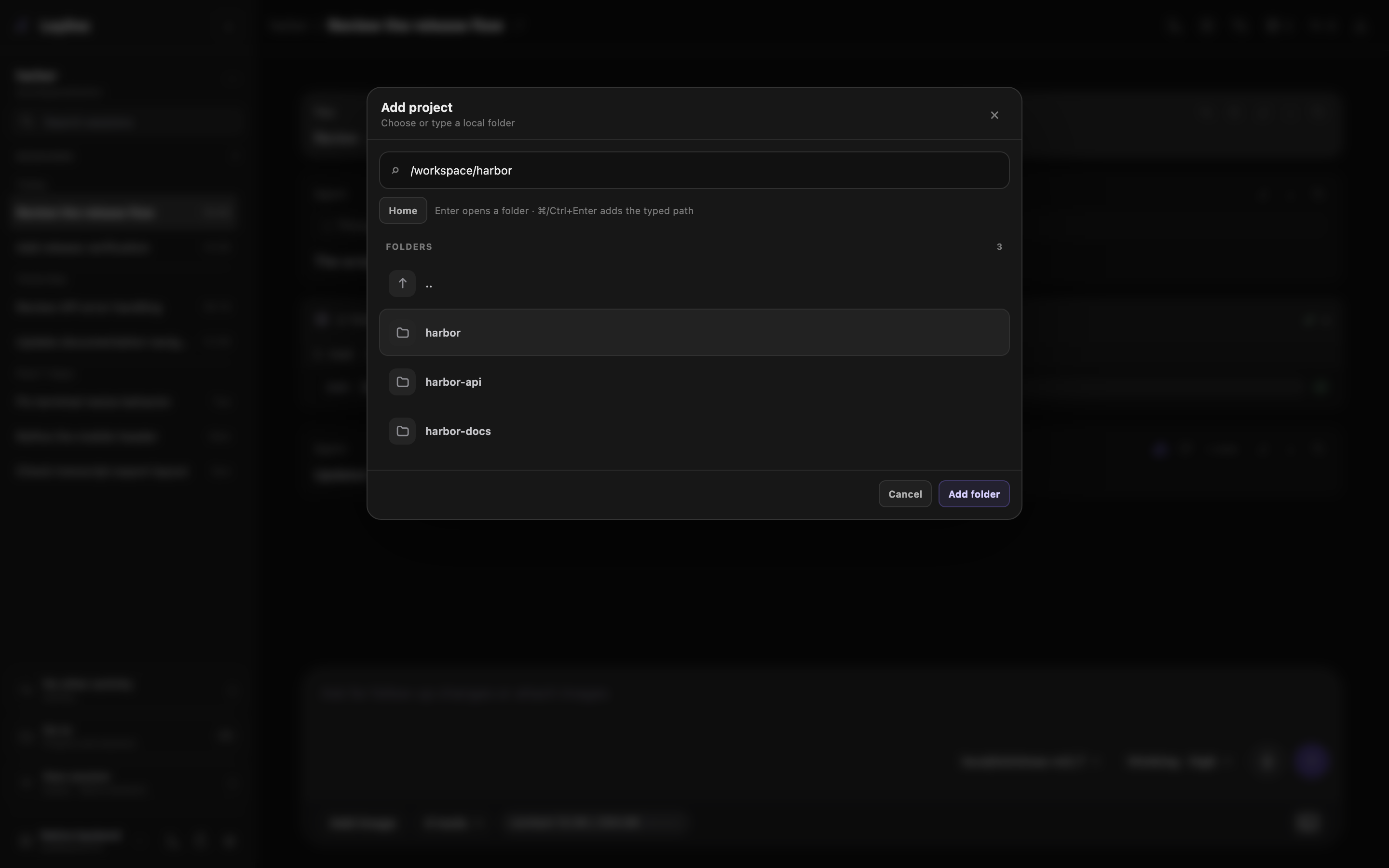
Add project accepts a path and lets you browse matching local folders.
Select Go to, then select Add project in the navigator header. You can also select Add new project on the start screen.
The Add project browser can open an existing folder or create the typed folder. See Start screen for its keyboard controls.
Adding a folder creates a session in that folder. Leyline does not keep a separate project registry.